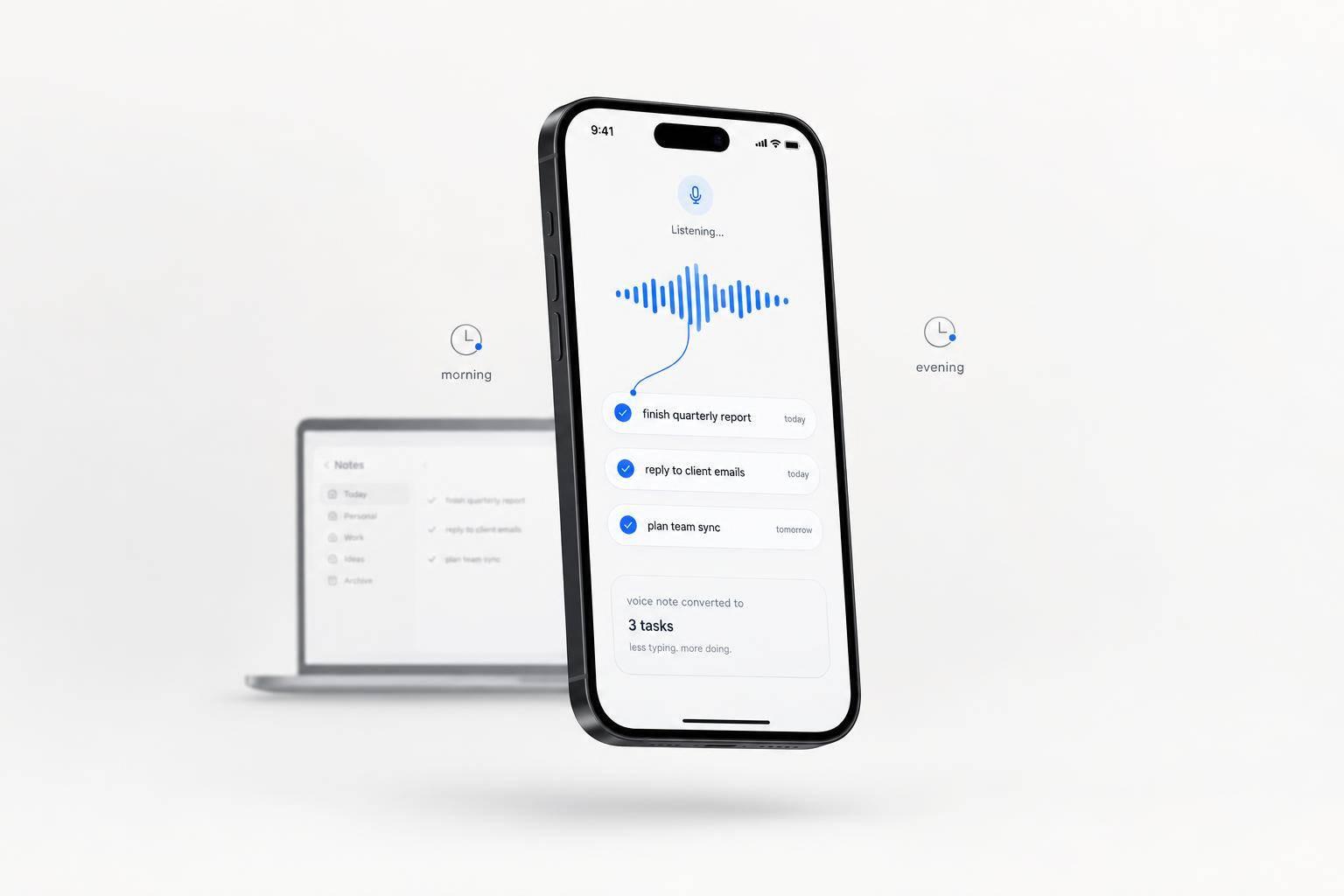
How Voice Notes Reduce Context Switching
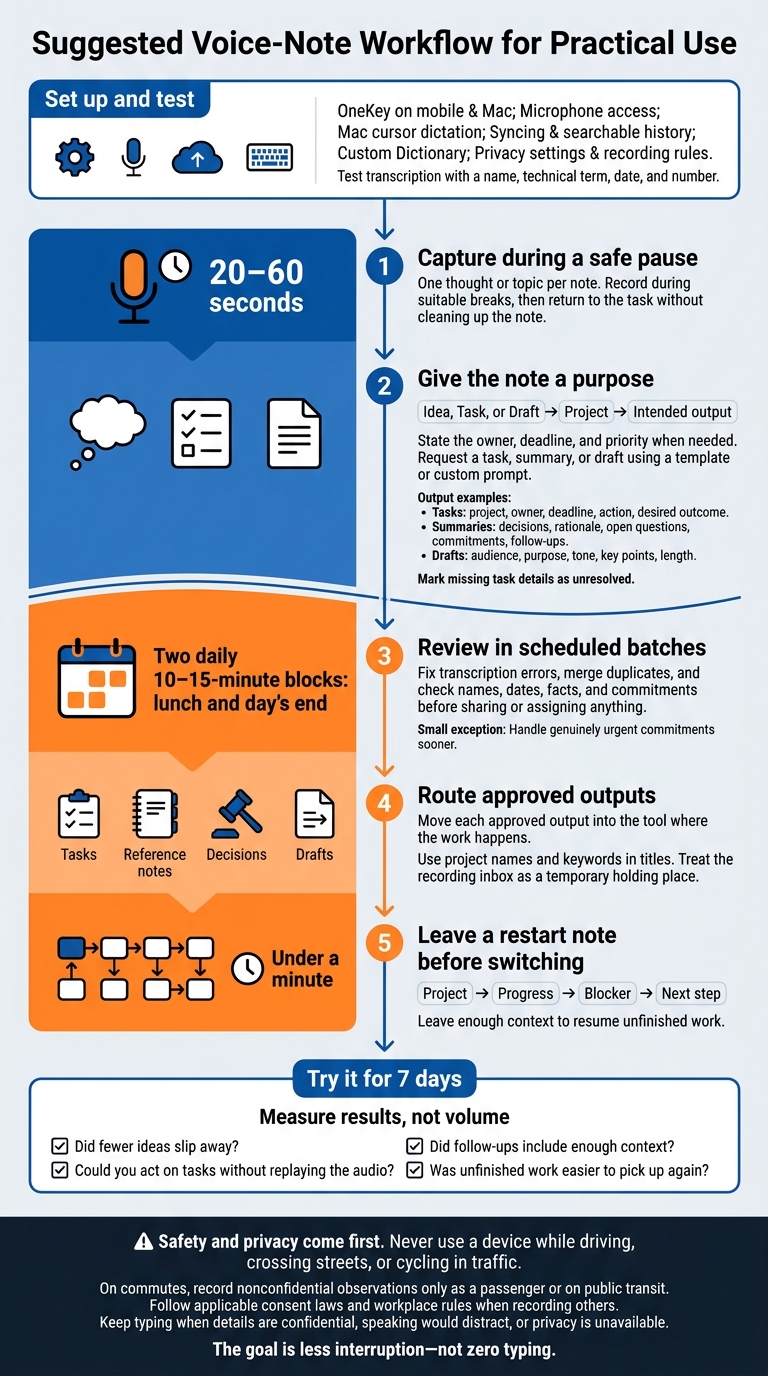
My rule for fewer interruptions: record one thought during a safe pause, then save the editing for later. I’d start with a 20- to 60-second note and review saved notes in two daily 10–15-minute blocks.
Here’s the workflow I’d use:
- Set up and test: Check OneKey on mobile and Mac, microphone access, syncing, and privacy settings.
- Give each note a purpose: Name the project and ask for a task, summary, or draft. Include owners and deadlines when needed.
- Review before acting: Check names, dates, facts, and commitments, then move the result into the tool where I’ll use it.
- Make restarting easier: Before switching tasks, leave the project, progress, blocker, and next step.
I’d test this for 7 days, judging it by fewer lost ideas and easier restarts - not the number of recordings. <u>Safety and privacy come first</u>: no device use while driving, and typing stays an option when speaking isn’t suitable.
The goal is less interruption, not zero typing.
Voice Notes Workflow for Less Context Switching
Step 1: Set Up Voice Notes on Mobile and Mac
Make voice capture take seconds so you spend less time switching between apps. Set up OneKey for two uses: quick voice notes on mobile and dictation at your cursor on Mac. Test both before you depend on them.
Install and Test the Apps
Install OneKey Notes from the App Store or Google Play, sign in with Google or Apple, and allow microphone access. Check that your Mac supports the app, then test the Mac hotkey in a blank draft. Your words should appear at the cursor.
Record a short test that includes a name, technical term, date, and number. Check the output, add terms you use often to the Custom Dictionary, and make sure the note appears in searchable history on both devices. You can check your remaining transcription limit in Settings.
With both apps working, use a consistent format to label your notes.
Name the Note Type, Project, and Output
Start each note with Idea, Task, or Draft, followed by the project and intended output. State the owner, deadline, and priority clearly. For repeat workflows, select an available template or custom prompt to get the format you need.
Check Privacy and Recording Rules
Before recording sensitive work, review microphone permissions and recording rules. Check what stays in history, what syncs, and what leaves your device. When recording other people, follow applicable consent laws and workplace rules.
With voice capture set up, move on to turning speech into tasks, summaries, and drafts.
sbb-itb-b6fe06e
Step 2: Turn Speech Into Tasks, Summaries, and Drafts
Follow one loop: speak the thought, request a format, review the result, and save it where the work happens. You can keep work moving during a walk, commute, or gap between meetings without stopping to type. OneKey can turn spoken input into notes, summaries, and action plans. Before sharing or assigning anything, check names, dates, facts, and commitments.
Create Tasks With Owners and Deadlines
When a spoken idea needs to become an assigned task, ask for the details your task system needs.
Hypothetical input: “For onboarding, customers are missing the setup email. Jordan should review delivery failures by November 12, 2026, and propose a fix.”
Requested format: “Extract the project, owner, deadline, action, and desired outcome. Mark missing details as unresolved.”
Check the output, then move it directly into your task system.
Project: Onboarding. Owner: Jordan. Deadline: Nov. 12, 2026. Action: Review setup-email delivery failures and propose a fix. Unresolved: Affected customers, failure rate, implementation deadline.
Verify Jordan and the deadline before adding the task.
Turn a Meeting Recap Into a Summary
Turn a spoken meeting recap into a clear record of what was decided - and what still needs an answer.
Hypothetical customer-call recap: “Jordan and I agreed to delay the pilot because the customer’s setup is incomplete. Jordan agreed to review the setup gaps. No revised launch date was agreed. I suggested a readiness check, but the customer hasn’t approved it.”
Ask OneKey to organize this into decisions, rationale, open questions, commitments, and follow-ups using a meeting template or custom prompt.
Illustrative summary: Decision: Delay the pilot. Rationale: Incomplete customer setup. Open questions: Revised launch date and review deadline. Confirmed commitment: Jordan will review setup gaps. Proposed follow-up: Readiness check, pending approval.
Review before sharing.
Turn Rough Thoughts Into a Draft
To turn a rough thought into a first draft you can prepare to send, state the audience, purpose, tone, key points, and length before dictating. Custom prompts can help shape the output.
Hypothetical draft
Subject: Pilot timeline update
Hi,
Our pilot timeline needs to change because setup is not yet complete. We do not have a confirmed revised launch date.
Please reply with the remaining setup steps on your side. That will help us update the timeline based on confirmed information, not assumptions.
Thank you.
Save the clean output now. Review and sort the saved notes next, working through them in batches rather than one by one.
Step 3: Record at Natural Breaks and Review in Batches
Record first, review in batches. Keep each note to one thought or topic, and save nonurgent edits for scheduled reviews. During breaks, record what you need, then return to your task without cleaning up the note.
Use Walks, Commutes, and Meeting Gaps
Founders can record ideas during natural breaks without losing momentum. Use walks for ideas and strategy, and meeting gaps for commitments, follow-ups, and questions. On commutes, record nonconfidential observations only as a passenger or on public transit.
Stop recording whenever safety or privacy requires it. Never use a device while driving, crossing streets, or cycling in traffic. Before focused work, dictate a 20- to 60-second brief covering your intended outcome, constraints, and first action. If you stop midstream, leave a note so you can pick up where you left off.
Leave a Note to Help You Resume Work
Record four things: project, progress, blocker, and next step. This restart plan can take under a minute and reduce attention residue - the mental drag of unfinished work.
Example restart note: “Pricing memo: finished the cost assumptions; still need to check support costs; next, review last month’s support hours.”
Clear the inbox during scheduled review blocks, not between tasks.
Review and Sort Notes Twice a Day
Set aside 10–15 minutes at lunch and at day’s end to fix transcription errors, merge duplicates, and confirm names and deadlines. Sort approved outputs into tasks, reference notes, decisions, or drafts, then move each to its proper system. Handle genuinely urgent commitments sooner.
Put project names and keywords in titles so you can find notes without replaying the audio. Treat the recording inbox as a temporary holding place, not another inbox to check all day. This keeps voice recording fast and manual typing rare.
Conclusion: Try the Workflow for 1 Week
Give the workflow a 7-day test. Use voice notes during safe pauses on walks and between meetings, without stopping to type. Record the thought, convert it, review it, and return to your next action.
At the end of the week, measure results, not volume. Did fewer ideas slip away? Could you act on tasks without replaying the audio? Did follow-ups include enough context? Was unfinished work easier to pick up again? Use your answers to decide when voice-first is worth keeping.
Keep typing for confidential details, when speaking would distract you, or whenever you lack privacy. The goal is less interruption - not zero typing.
FAQs
How can I tell if voice notes actually save me time?
Measure total workflow time, not just speaking speed. Count the time spent editing AI output, organizing follow-ups, and switching apps. Voice notes save time only when faster recording and automatic task extraction take less time than the cleanup adds.
Try recording thoughts during walks or commutes to see whether it saves you from stopping to type. Voice works best for brainstorming, email drafts, and meeting recaps. For tasks under 10 words, starting the tool may wipe out any time saved.
How do I keep voice notes from becoming another distraction?
Record your thoughts as they come, without stopping to organize them. Set aside 15 minutes for a weekly review to tag, file, or act on what you’ve recorded.
Keep everything in one inbox, and use automated routing to move tasks into your existing workflow. OneKey can remove filler and turn your speech into structured, actionable summaries, so your notes stay useful instead of becoming digital clutter.
How can I stop AI summaries from inventing commitments?
Give clear signals when you speak, and use structured outputs. Label each item as Task, Decision, Idea, or Question. For every task, name the person responsible and state the expected outcome. This helps keep AI summaries tied to what you actually said.
Use predefined meeting debrief templates to give the AI a set structure to follow, rather than leaving it to infer commitments from unstructured thoughts.