10 Ways Voice Dictation Boosts Daily Productivity
I can usually speak 3x to 4x faster than I type. That one gap changes a lot: emails get drafted faster, meeting notes are easier to log, tasks are less likely to slip, and rough ideas make it into my system before I forget them.
If I had to sum up the whole article in a few lines, it would be this:
- Voice works best for first drafts, notes, and task entry
- Typing still works better for code, file paths, and other syntax-heavy work
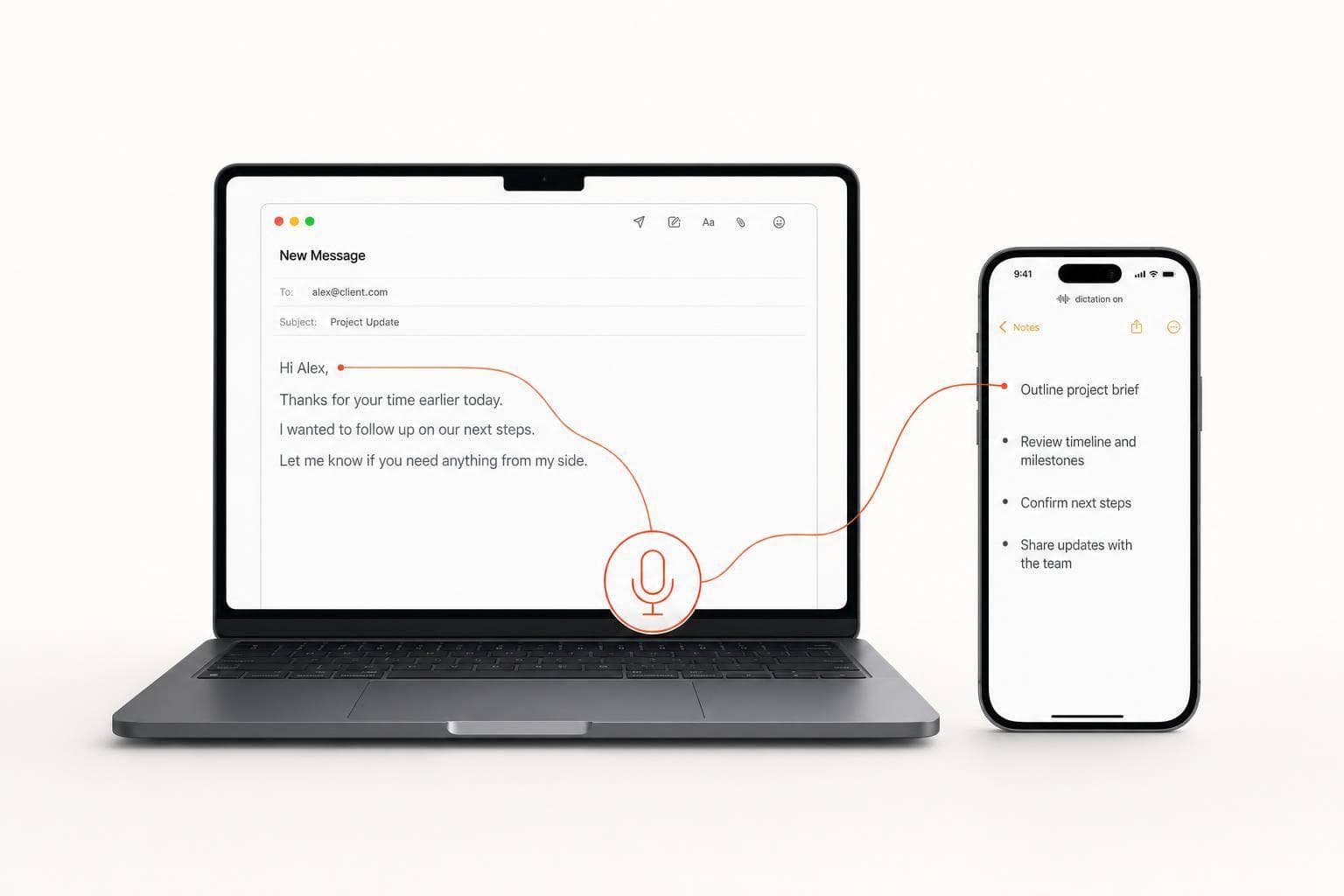
- The big win is less friction: press a hotkey, talk, and drop text into the app I’m already using
- AI helps clean the draft by adding punctuation, removing filler, and pulling out action items
- The result is simple: less time spent typing and less mental drag during the day
The article covers 10 day-to-day uses for dictation:
- Drafting emails
- Taking meeting notes
- Saving on-the-go ideas
- Building task lists
- Journaling and reflection
- Outlining content
- Documenting SOPs
- Cutting typing fatigue
- Turning dense info into notes
- Triggering follow-ups from spoken commands
A few numbers stand out right away:
- Most people speak at 130 to 160 words per minute
- Typing often lands near 40 words per minute
- A 500-word email may take about 12 minutes to type and about 4 minutes to dictate
- Heavy communicators may save 130+ hours per year
| Area | Typing | Voice dictation |
|---|---|---|
| Speed | ~40 WPM | 130-160 WPM |
| Start-up effort | Open app, click, type | Press hotkey, speak |
| Best use | Final edits, code, syntax | Drafts, notes, tasks |
| Main downside | Slower, more hand work | Needs cleanup in some cases |
My takeaway: voice dictation is not about replacing typing. It’s about using speech for the parts of work where speed and low effort matter most, then using the keyboard for cleanup.
8 Dictation Tips That Really Work
sbb-itb-b6fe06e
1. Drafting Emails in Less Time
A 500-word email takes about 12 minutes to type and about 4 minutes to dictate, which gives you about two-thirds of that time back. That same slowdown shows up in almost every routine task that starts with a blank page.
Typing also slows you down in a less obvious way: it divides your attention. You’re trying to hold one thought in your head while your hands finish the last one. Speaking cuts out that extra mental strain. Then AI turns the rough draft into clean, readable copy, so you spend less time fixing wording before you hit send.
A simple way to do this is with a voice dump: say the draft out loud first, then let AI shape it into a polished email. With OneKey on Mac, your dictated text appears right at your cursor in any app, so a usable draft drops straight into your workflow. The same time savings show up with meeting notes too, since speaking lets you stay present and still capture the details.
2. Taking Meeting Notes Without Losing Eye Contact
Typing during a meeting pulls your attention in two directions. Voice dictation helps you stay in the conversation, keep eye contact, and grab action items in short bursts. Hit a hotkey during a natural pause, speak your note, and the text drops right where you need it, so everything stays in one workflow.
You can also dictate action items into the meeting chat before the call ends: "Joel sends the proposal by Friday." That gives the group a clean summary before anyone logs off. And if a detail slips by, a quick voice dump right after the call can catch it before it fades from memory.
AI can clean up filler words, add punctuation, and turn rough recap notes into headers, bullets, and action items. So meeting talk becomes something the team can use right away.
That same fast capture gets even more useful when ideas pop up outside meetings.
3. Turning On-the-Go Founder Ideas Into an Organized Second Brain
The best founder ideas rarely show up at a desk. They tend to hit during a morning walk, on a commute, or in the gap between back-to-back meetings. And if you don’t catch them right away, they’re gone.
That’s where voice dictation helps. It lets you grab an idea before it slips away.
A hold-to-speak hotkey makes this even easier. You can record a thought in a few seconds without switching apps or stopping what you’re doing. That matters when the job is simple: capture it now, sort it out later.
Then AI cleans up the raw note for you. It can turn a rough voice memo into a searchable bullet list or a project note, and send it to the right place automatically. Tools like OneKey sync those captured thoughts across mobile and Mac, so an idea you speak on a walk is already sorted by the time you’re back at work.
Once the idea is in the system, it can move straight into tasks, projects, or follow-ups.
4. Building and Updating Task Lists by Voice
Tasks often slip away in the small gap between thinking of them and writing them down. Voice capture helps close that gap. Instead of spending 6 to 10 seconds opening your phone, finding the app, and typing, you can log a task in 2 to 4 seconds.
That speed matters right after a call. When you're rattling off action items, speaking them out loud makes it much easier to catch them before the details fade.
The best move is simple: capture first, sort later. Let the AI pull out due dates and project context from what you said, then review everything once or twice a day. OneKey's automatic task extraction takes your spoken words and routes them without any manual tagging.
And if you need to double-check what you meant, the raw transcript stays attached. So you don't have to rely on memory or guess what you were trying to say. That same low-friction flow also works well for quick daily reflection.
5. Journaling and Daily Reflection to Clear Mental Clutter
That same capture-first habit makes end-of-day reflection a lot easier. With voice dictation, you don't have to stop, open a note, and type before the thought slips away. You just say it. The point is simple: clear your head without losing anything useful.
Speaking can also quiet the inner critic a bit. Instead of stopping to polish every sentence, you can keep going and record a more complete version of what you're actually thinking.
There's a sleep angle here too. Research published in the Journal of Experimental Psychology found that externalizing tomorrow's tasks helps people fall asleep faster than writing about completed tasks. Once those thoughts are captured, they don't keep circling in your head.
And those spoken notes don't just disappear into a folder. They can turn into raw material for your next note, outline, or follow-up.
6. Outlining Content From Investor Updates to Long-Form Posts
The hardest part of writing is often just getting started. Voice dictation helps remove that blank-page drag. And that same low-friction way of getting ideas out can turn rough thoughts into material you can shape into a draft.
That speed matters most when you have an idea you need to pin down before it slips away.
If you're a founder trying to turn scattered thinking into investor updates, long-form posts, or internal docs, use the same voice-dump flow for writing: speak freely for five minutes, then let AI turn the transcript into an outline.
This works especially well for investor updates. A 500-word investor update can be dictated in minutes, then cleaned up in a short review. It can also help keep a more natural tone.
Keep the outline in the same workspace so it can move straight into drafts, docs, or SOPs. Once you have the outline, it can also turn into repeatable documentation.
7. Documenting Processes and SOPs Without the Friction
Once an idea turns into a repeatable process, voice dictation makes documentation much easier to get done. A lot of process docs get pushed off for one simple reason: they feel like extra work. Voice capture helps close that gap because you can record the process before the details slip away.
A simple way to do it is this: finish the task, then dictate the steps right away as a quick spoken draft. Talk like you're walking a teammate through it. From there, AI can turn that rough recording into an SOP draft you can clean up.
Then move the edited version into your system while the process is still fresh in your mind.
For day-to-day use, keep the SOP in your shared workspace so it's searchable and easy to find near the work itself.
8. Cutting Typing Fatigue and Context Switching
Once you've documented repeatable work, the next slowdown is often the typing itself.
Every time you pause to type, you interrupt your flow and force yourself to hold the next idea in working memory. It seems small, but that friction adds up across every email, Slack message, and project update you write during the day.
A typical knowledge worker logs between 8,000 and 15,000 keystrokes per day. If even half of that output shifts to voice, you can cut repetitive hand and wrist motion by half, which helps reduce hand strain.
The biggest upside is using a system-wide hotkey that works across email, chat, your browser, and project tools. Dictation drops clean text straight into the app you're already in, so you can keep moving without copy-pasting.
That same low-friction capture also makes it easier to turn dense information into notes you can act on.
9. Condensing Dense Information Into Actionable Notes
After a long research session, a dense report, or a 45-minute call, the last thing most people want to do is type out everything they just took in. Voice makes that part easier. You can lock in the takeaway before it slips away, which is often the whole game.
The main point here is simple: turn a lot of input into a note you can use while the context is still fresh.
Right after a document review, call, or research session, dictate a short summary. Say the key points, decisions, and next steps out loud. Modern AI can then remove filler words and sort your spoken thoughts into a structured summary with action items and next steps.
That matters because it makes the information searchable. Once your spoken summary is transcribed, you can find a specific decision or quote in seconds instead of digging through a long recording. At that point, the transcript stops being a wall of text and starts working like a usable note. From there, it can also trigger follow-up actions on its own.
10. Triggering Follow-Ups and Tool Integrations From Spoken Commands
Once a note is condensed, the next move is action. The big win here is execution: turn a spoken summary into a task, message, or calendar update without typing it again. To do that, you need a system that can classify the command, pull out the key details, and send it to the right place. For founders, that shifts a voice-first second brain from a simple notebook into an operating system.
Voice workflows usually run in two steps. First, the AI sorts each command as a task, note, or event. Then it pulls names, due dates, and tags, and sends anything unclear to a review inbox. From there, the right output routes on its own - no manual copying, no missed follow-ups.
What cuts the friction is paste-free text entry. The fastest setups place cleaned, structured text right into the app you’re already using, so you can skip copy and paste. You speak, and the output shows up where you need it. That’s the line between a basic dictation app and a workflow tool that actually saves time.
The same flow works on mobile, where fast automations matter most. Mobile automations can send captured commands into your chat, notes, or task tools. Say the command once, and the right tool updates on its own. If you need to check what happened later, you can pull up any command as a simple audit trail.
Where OneKey Fits Into a Voice-First Productivity Stack
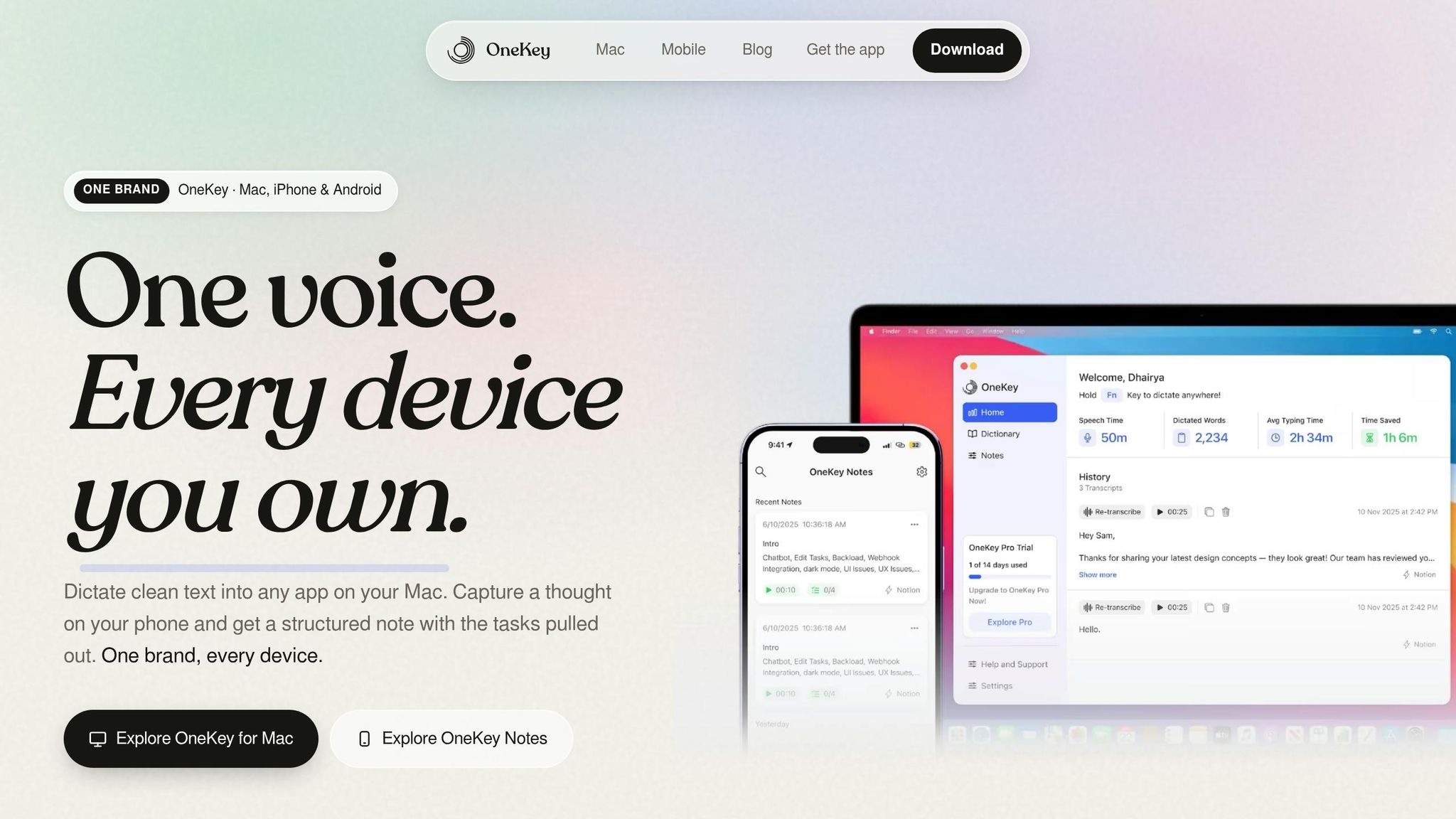
After the use cases above, the next step is pretty simple: what turns raw speech into something you can use right away? The bottleneck usually isn’t capture. It’s cleanup and routing. OneKey handles that part.
On Mac, OneKey works system-wide. So you can dictate into any app - Gmail, Notion, Slack, or a browser tab - without jumping between windows or copying text back and forth. On mobile, it lets you capture ideas on the go and turn them into structured text right away.
OneKey removes filler words, fixes punctuation, and formats dictation into ready-to-use drafts, task lists, and summaries. And because every capture stays searchable, your notes build into a kind of second brain over time.
It also connects spoken notes to the tools you already use. Webhook integrations with Zapier, Slack, and Notion send captures into your current workflow automatically.
Once capture, cleanup, and routing are in place, the next thing to look at is how dictation stacks up against typing.
Speaking vs. Typing: A Side-by-Side Comparison
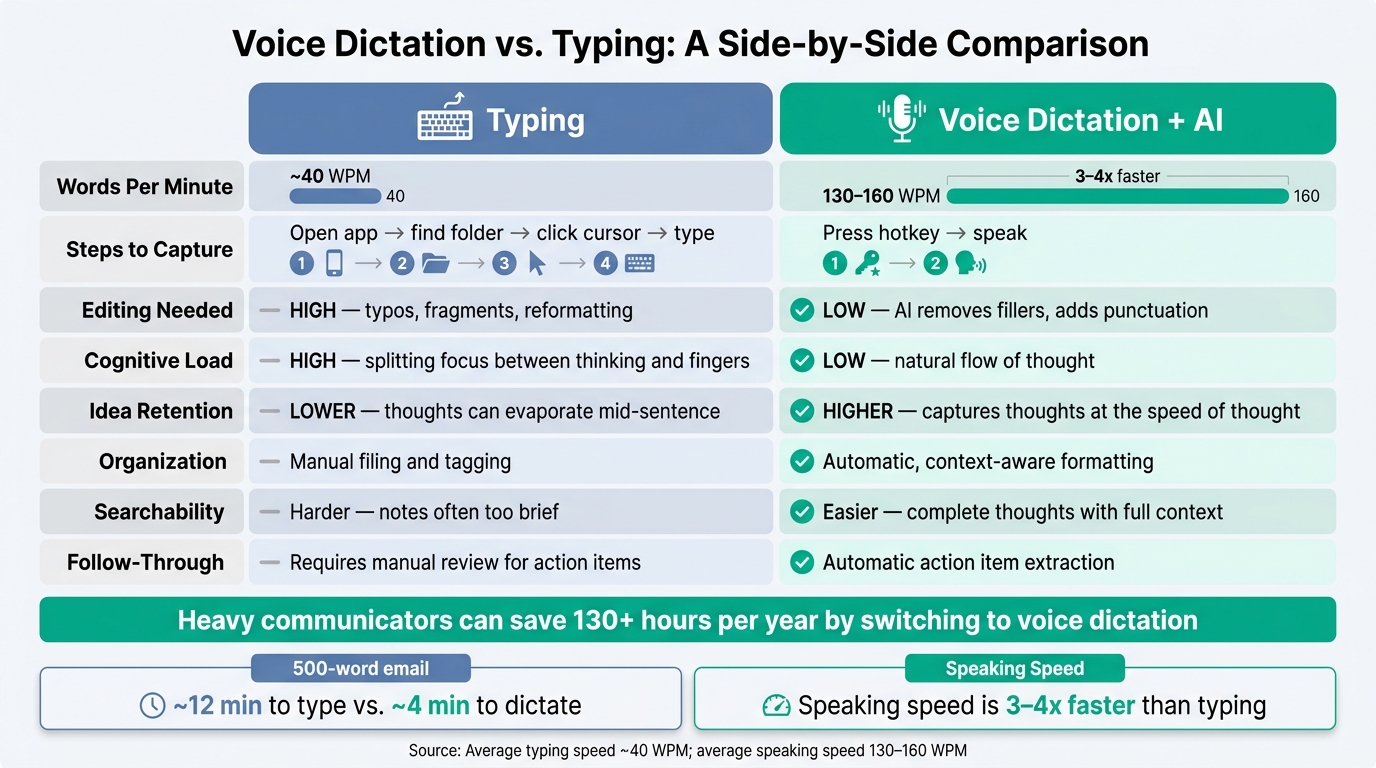
Voice Dictation vs. Typing: Speed, Effort & Productivity Gains
After the use cases above, the main question is pretty simple: when does voice beat typing?
Typing makes you divide your attention. You’re trying to hold onto your next thought while your hands finish the last sentence. That’s a big reason typed notes often end up choppy, incomplete, or annoying to use later.
Voice works differently. You stay with the idea instead of juggling the mechanics of getting it onto the page.
Here’s what that tradeoff looks like day to day:
| Factor | Typing | Voice Dictation + AI (OneKey) |
|---|---|---|
| Words per minute | ~40 WPM | 130–160 WPM |
| Steps to capture | Open app → find folder → click cursor → type | Press hotkey → speak |
| Editing needed | High (typos, fragments, reformatting) | Low (AI removes fillers, adds punctuation) |
| Cognitive load | High - splitting focus between thinking and fingers | Low - natural flow of thought |
| Idea retention | Lower - thoughts can evaporate mid-sentence | Higher - captures thoughts at the speed of thought |
| Organization | Manual filing and tagging | Automatic, context-aware formatting |
| Searchability | Harder - notes are often too brief to search well | Easier - complete thoughts with full context |
| Follow-through | Requires manual review to find action items | Automatic action item extraction |
The speed gap stands out right away. Typing lands at about 40 WPM, while voice dictation can hit 130–160 WPM. That changes the feel of note-taking. Instead of trimming ideas to keep up with your keyboard, you can just say the full thought and move on.
There’s also less friction. Typing asks you to open the right app, find the right place, click into it, and then start writing. Voice with OneKey cuts that down to press hotkey → speak. Small difference on paper. Big difference when you’re in the middle of work and don’t want to lose your train of thought.
Editing is another place where voice has an edge. Typed notes often come with typos, half-finished phrases, and rough formatting. With AI in the loop, dictation stays cleaner because fillers get removed and punctuation gets added for you.
That said, typing still has its place. It’s better for:
- Code
- File paths
- Shell commands
- Other syntax-heavy work
A simple way to think about it: use voice for capture and first drafts, then switch to typing for cleanup and syntax.
With that balance in place, the next step is making dictation cleaner and more reliable.
Practical Tips for Better Dictation Results
Once dictation is fast, a few simple habits make the output cleaner and much easier to use later.
Think first, then speak. Build the full sentence in your head before you start talking. That gives the transcript more context, which helps with similar-sounding words and leads to cleaner text.
Capture first, edit later. If you're dictating a recap or action items, don't stop every few seconds to fix mistakes. Get the whole thought out first. Then switch to your keyboard and clean it up. That flow is where the time savings come from.
For recurring notes, verbal punctuation helps a lot. Saying things like "period" and "new paragraph" while you dictate keeps notes structured and cuts down on cleanup later. This matters most for repeat formats like end-of-day recaps, weekly team updates, and investor notes, where steady formatting saves time down the line.
The fastest way to lose a dictated idea is to leave it sitting in a separate memo. Dictate straight into the app where the work belongs so the note stays tied to the task.
Conclusion
Voice dictation isn't a gimmick. It's a shift in how work gets done. Across emails, notes, tasks, and outlines, those saved minutes start to stack up.
The biggest payoff comes when dictation becomes part of your normal routine instead of something you use once in a while. The best use cases tend to be the ones you repeat all the time: task capture, meeting follow-ups, journaling, and first drafts.
For that to work day after day, your capture tool needs to clean up and route text on its own. A voice-first setup only holds up when spoken input turns into usable text right away. That's where OneKey stands out. On Mac, it places clean text right where your cursor is, with no copy-paste and no switching between apps. On mobile, you can speak a thought while you're out for a walk and get back formatted, ready-to-use text. Every capture syncs and stays searchable, so ideas don't slip through the cracks between thought and action.
When capture turns into structured output, speaking stops being just a shortcut and starts becoming a system. For heavy communicators, that can mean 130+ hours saved per year. And that structure is what turns dictation into a usable second brain.
FAQs
When should I use voice instead of typing?
Use voice instead of typing when you want to move faster, get ideas down on the spot, and put less strain on your hands and wrists. For a lot of people, speaking tracks closer to how they think: about 130–160 words per minute versus roughly 40 words per minute for typing.
Voice works best when the goal is speed and flow. That includes:
- drafting emails
- taking meeting notes
- jotting down ideas on the go
- making task lists
- outlining content
It’s a good fit for those early, messy stages where momentum matters more than polish.
How accurate is voice dictation for daily work?
Voice dictation is now accurate enough for day-to-day work. Many modern AI-powered tools reach over 95% accuracy in professional settings, which makes them a solid option for emails, notes, and documents.
And it’s not just about turning speech into text. These tools can also handle punctuation, formatting, and even multilingual switching. That means you can speak more naturally instead of stopping every few seconds to clean things up.
That said, it’s still not perfect. Domain-specific terms, strong accents, and noisy places can trip it up. But context-aware features and custom vocabularies can help cut down on mistakes and make the output much more usable.
What’s the best way to start using dictation every day?
Start with one specific task like emails or meeting notes, and use dictation for that task every day for about a week.
Pick a quiet spot, use a decent microphone or your device’s built-in voice typing, and speak the way you normally talk. At first, don’t stress over mistakes. You can clean them up later. Once it starts to feel routine, add other tasks bit by bit.