The Ultimate Guide to Voice Dictation on Mac in 2026
You can speak about 3x faster than you type, but the right Mac setup depends on what you want to do. If you want text at the cursor, start with macOS Dictation. If you want full hands-free control, use Voice Control. If you need local dictation, meeting transcripts, or spoken notes that turn into tasks and drafts, look at Superwhisper, MacWhisper, Otter, Wispr Flow, or OneKey.
Here’s the short version:
- Best for basic text input: macOS Dictation
- Best for hands-free Mac control: Apple Voice Control
- Best for local, system-wide dictation: Superwhisper
- Best for polished cloud dictation: Wispr Flow
- Best for recorded audio transcription: MacWhisper
- Best for live meeting notes: Otter
- Best for spoken notes that become tasks or drafts: OneKey
A few facts matter most right away:
- Most people type around 40 words per minute
- Most people speak around 120 to 150 words per minute
- Apple Dictation may stop after about 30 seconds of silence
- A good external mic can improve accuracy by about 5% to 10%
- Whisper-based tools tend to do better with technical terms than Apple’s built-in dictation
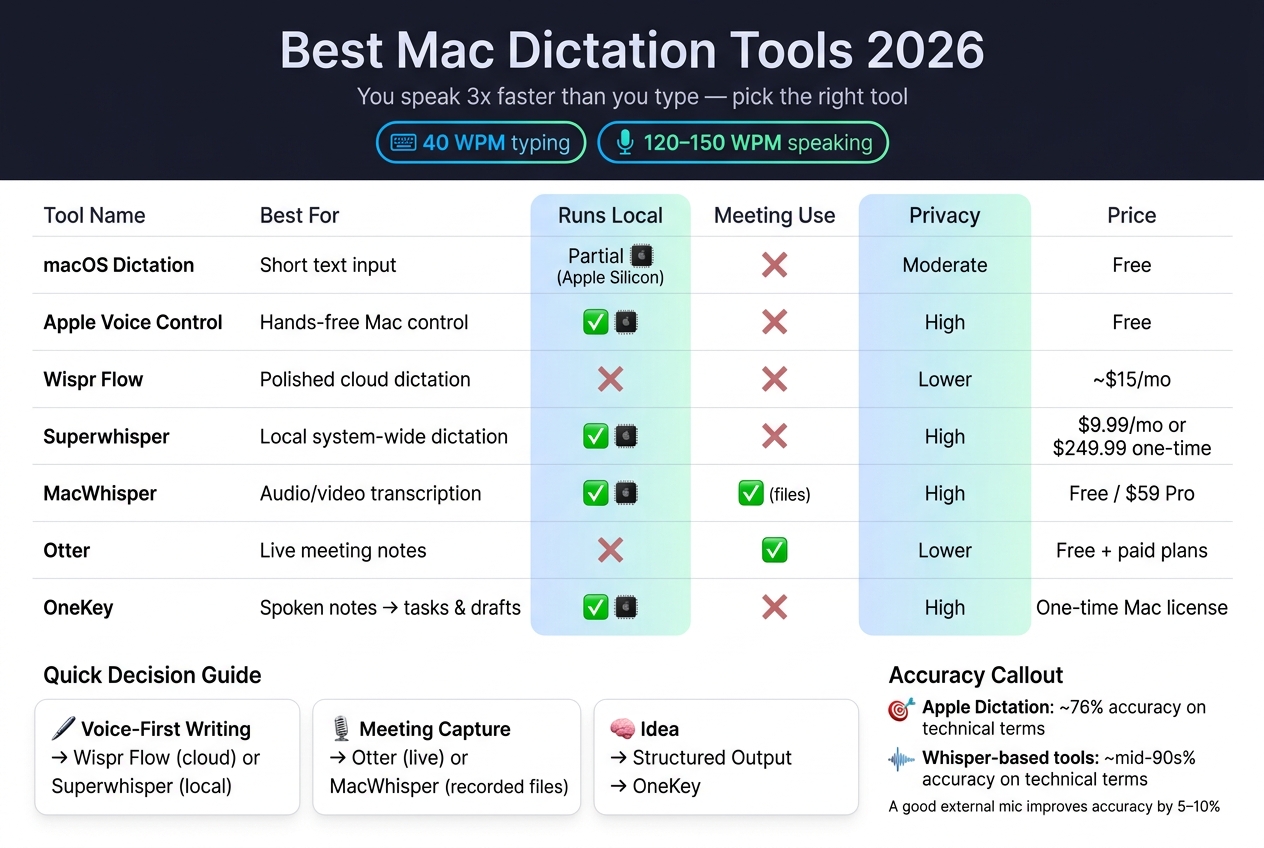
Best Mac Dictation Tools 2026: Side-by-Side Comparison
Best Dictation Software for Mac: 7 Tools That Fix Accuracy, Punctuation & Editing (macOS Tahoe 26)
Quick Comparison
| Tool | Best for | Works across apps | Runs local | Meeting use | Price |
|---|---|---|---|---|---|
| macOS Dictation | Short text input | Yes | Partial on Apple Silicon | No | Free |
| Apple Voice Control | Hands-free control | Yes | Yes | No | Free |
| Wispr Flow | Cleaned-up writing | Yes | No | No | About $15/month |
| Superwhisper | Local dictation | Yes | Yes | No | $9.99/month or $249.99 once |
| MacWhisper | Audio and video transcription | No | Yes | Yes, for files | Free / $59 Pro |
| Otter | Live meeting notes | No | No | Yes | Free + paid plans |
| OneKey | Dictation into tasks and drafts | Yes | Yes on Mac | No | One-time Mac license |
If I were picking fast, I’d do this:
- Use Apple’s built-in tools first
- Switch to Superwhisper if local dictation matters
- Pick Otter or MacWhisper if your main job is meetings
- Use OneKey if you want spoken thoughts to turn into something you can use right away, not just plain text
The rest of the guide breaks down those choices by setup, speed, privacy, and daily workflow.
Built-in macOS dictation tools: where to start
Apple includes two voice tools in macOS, and each one does a different job. macOS Dictation is for entering text. Apple Voice Control is for running your Mac without touching the keyboard or trackpad. If you want a fast way to capture quick notes, replies, or stray ideas, these are the easiest places to begin.
macOS Dictation for everyday text entry across apps
You can turn it on in System Settings > Keyboard > Dictation. After that, press Fn twice - or use the Microphone key on newer MacBooks - inside any text field.
The experience changes a lot based on your Mac. On Apple Silicon Macs (M1 and later), Dictation can process speech on-device when Send to Apple is off. That helps with privacy and keeps latency low. On older Intel Macs, audio usually goes to Apple's servers instead, which means you need an internet connection and accept a privacy tradeoff.
For plain-English typing, Dictation does a solid job. But if you speak in half-finished thoughts, use lots of filler words, or need niche terms, expect to clean things up by hand. Spoken punctuation can also be hit or miss. There’s one limit that catches people off guard: Dictation stops listening after about 30 seconds of silence.
That makes it a good fit for short bursts, not long writing sessions.
Apple Voice Control for hands-free navigation and editing
If Dictation feels too limited, Voice Control goes much further. You’ll find it in System Settings > Accessibility > Voice Control. It’s meant for full hands-free use, so you can move around the interface and edit text by voice. The tradeoff is simple: it takes more time to learn, and it keeps listening until you switch it off.
Once it’s on, you can say "Show Numbers" to place numbered labels over items on screen. Then you just say the number to click. You can also open menus, scroll, select text, and move the cursor without touching your Mac. Editing commands like "Select previous sentence" and "Delete that" work across most apps.
| Feature | macOS Dictation | Apple Voice Control |
|---|---|---|
| Primary use | Text entry in apps | Full hands-free Mac operation |
| Activation | Keyboard shortcut (Fn Fn) | Accessibility setting |
| UI navigation | None | Full (menus, clicks, scrolling) |
| Editing | Basic (punctuation, new line) | Advanced (select, delete, move cursor) |
| Listening mode | Active only when triggered | Continuous |
| Timeout | ~30 seconds of silence | No timeout |
How to get better accuracy from Apple's built-in tools
Most accuracy gains come from your setup, not from digging through settings. A good external USB or Bluetooth microphone placed 6 to 12 inches from your mouth and slightly off-axis can improve recognition rates by 5% to 10% compared with the built-in Mac mic.
A few small changes can help a lot:
- Set your language to English (United States), not just English, so the model matches your accent and speaking rhythm more closely.
- Turn off "Send to Apple" in Dictation settings if you want local processing on Apple Silicon.
- Use macOS Text Replacement in System Settings > General > Keyboard for terms Dictation keeps getting wrong. For example, map "gql" to "GraphQL" or "k8s" to "Kubernetes", and macOS will swap them in for you.
If accuracy suddenly drops, test Dictation in Notes or TextEdit first. That’s a simple way to tell whether the issue is the speech engine or just a weird app field.
If Apple’s built-in options feel too limited for your pace, the next section gets into Mac apps that add system-wide dictation, cleanup, and capture.
sbb-itb-b6fe06e
Third-party dictation apps for Mac: what each one does best
Third-party apps usually handle one of three jobs: live dictation, meeting transcription, or structured capture. Put simply, you’re either speaking to write in the moment, turning recordings into text, or speaking so your ideas become something more organized than a plain transcript.
Wispr Flow and Superwhisper for system-wide writing
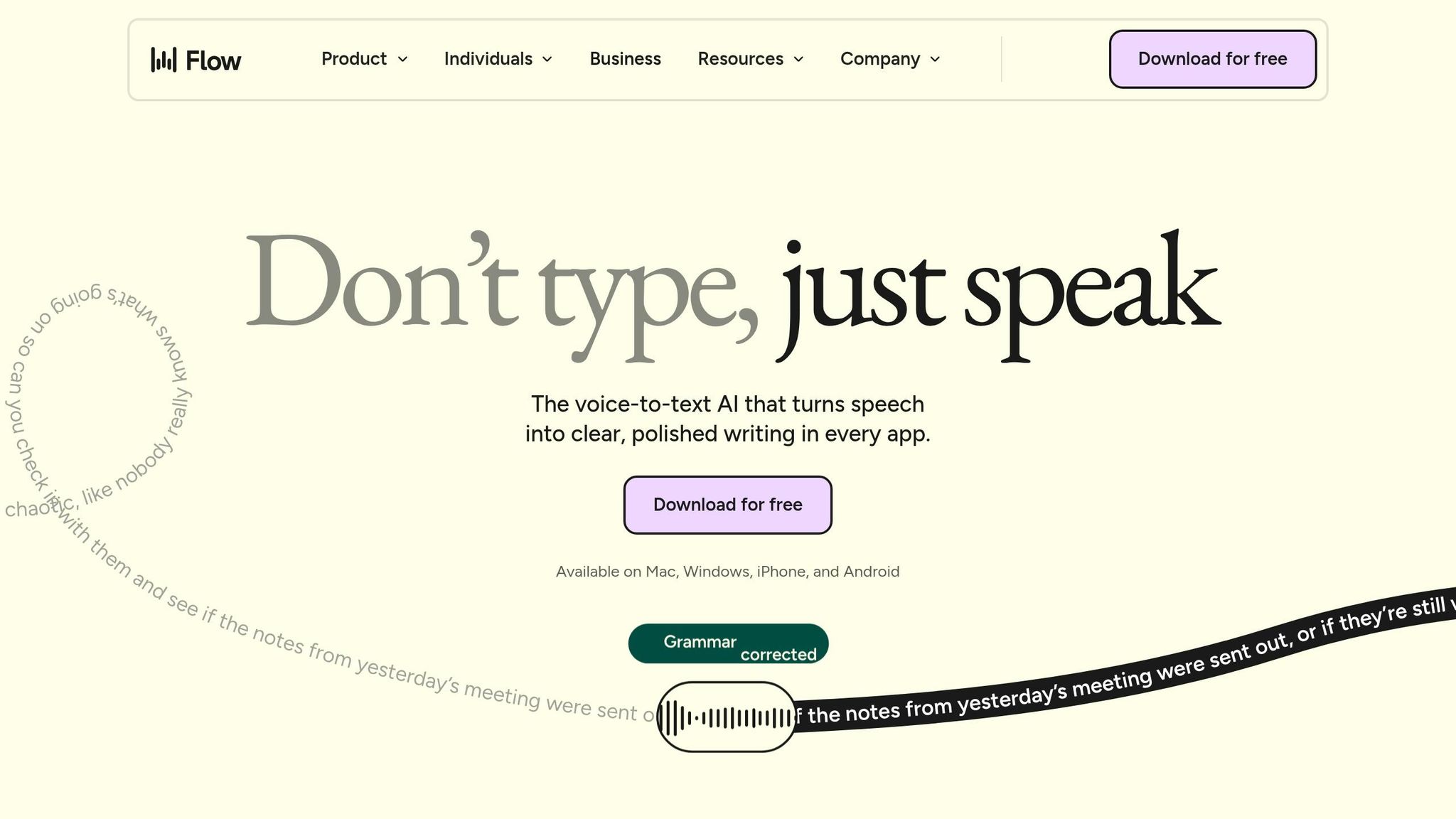
Both tools follow the same basic pattern: hold a hotkey, talk, let go, and cleaned-up text appears wherever your cursor is. No app switching. No copy-paste. That makes them handy for email drafts, Slack replies, and writing in docs as you go.
Wispr Flow feels like the more polished pick. It uses cloud processing to remove filler words, shift tone based on the app you’re using, and return text fast. The company says it delivers sub-700ms p99 latency. It works on Mac, Windows, iOS, and Android. The tradeoff is privacy and system use: audio goes to the cloud by default, and it can sit at around 800MB of RAM. Pricing is about $15/month or $144/year.
Superwhisper goes in the other direction. It runs the Whisper model locally on Apple Silicon, so your audio stays on your Mac. You can pick model sizes from Tiny to Large, which lets you trade speed for accuracy. It makes sense when local processing is a hard rule, like client work or sensitive drafts. It costs $9.99/month or $249.99 for a lifetime license.
MacWhisper and Otter for transcription and meeting-heavy work
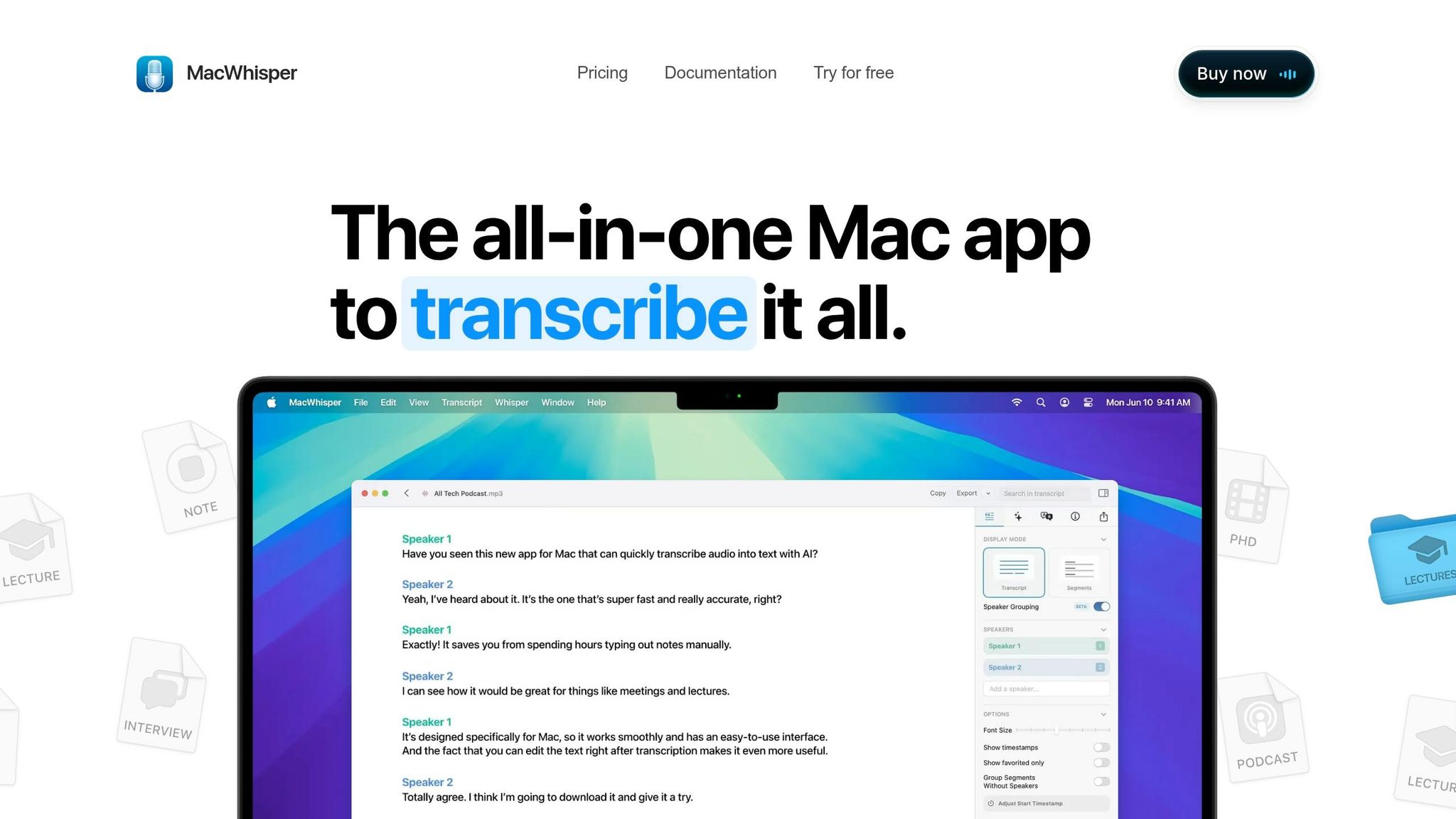
These two tools handle a different kind of job. Instead of replacing your keyboard, they work with audio that already exists, whether that’s a recording, an upload, or a live meeting stream.
MacWhisper is built for file-based transcription. Drop in an audio file, video file, YouTube link, or local recording, and it transcribes on-device using Whisper Large-v3, which reaches a 2.7% word error rate on clean audio. It also supports speaker separation and exports to formats like .srt and .vtt. That makes it a good fit for interview cleanup, podcast editing, or going back through recorded calls. The Pro version is a one-time $59 purchase, and there’s also a free version.
Otter works the other way around: it joins meetings live and transcribes in real time with speaker labels and automated summaries. Because it’s cloud-based, meeting audio is processed on Otter’s servers. For founders bouncing from one call to the next, that can save a lot of manual work and give you searchable transcripts right away. If your calls deal with sensitive topics, though, the cloud setup is something to weigh before you commit.
OneKey for system-wide dictation and a structured capture system
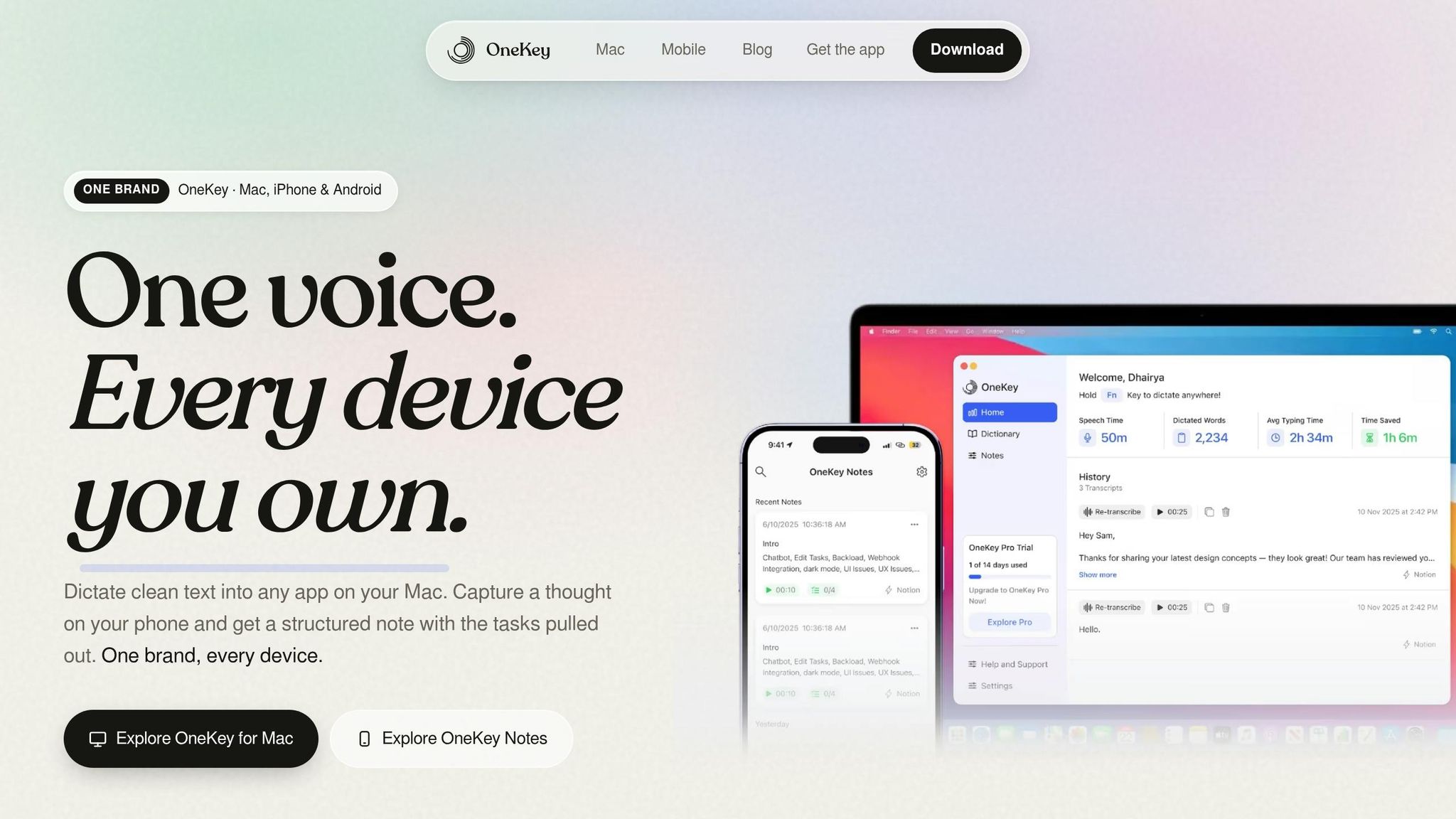
Most dictation tools stop at text. OneKey pushes past that by treating your spoken words as the starting point for structured output, not just a transcript.
On Mac, it gives you system-wide dictation with offline support built in. Press a key, speak, and AI-cleaned text appears wherever your cursor is. The Mac version uses a one-time license, so there’s no monthly fee to track. On mobile, you can speak a thought in any language and OneKey turns it into something ready to use, like a summary, task list, or draft. Everything syncs and stays searchable.
What sets it apart from plain dictation tools is the structured output layer. Instead of ending up with a wall of text, you get something you can use right away - tasks, briefs, or notes without manual cleanup. Webhook integrations with tools like Zapier, Slack, and Notion also let captured thoughts move straight into your current systems without manual copying. The mobile app is free to start, with optional upgrades.
Next, the goal is to match each tool to what matters most to you: speed, privacy, meetings, or structured capture.
How to choose the right dictation setup for your Mac
Choose the tool based on the job. In practice, there are three main jobs: live dictation, meeting transcription, and structured capture. Most apps do one of those jobs well, not all three. The table below helps you match the tool to the work you do most.
Side-by-side comparison of Mac dictation options
| Tool | Primary use case | System-wide input | Meeting transcription | Structured output | Where it runs | Privacy | Price model |
|---|---|---|---|---|---|---|---|
| macOS Dictation | Casual text entry | Yes | No | No | Partial on-device | Moderate | Free |
| Apple Voice Control | Hands-free navigation | Yes | No | No | On-device | High | Free |
| Wispr Flow | Polished writing and messaging | Yes | No | Cleanup | Cloud | Lower | Subscription |
| Superwhisper | Local dictation with model choice | Yes | No | Basic cleanup | Local or configurable | High | Subscription or lifetime |
| MacWhisper | File and audio transcription | No | Yes | Transcript export | On-device | High | Free tier + paid upgrades |
| Otter | Live meeting capture | No | Yes | Summaries and action items | Cloud | Lower | Free + subscription |
| OneKey | Dictation and structured capture | Yes | No | Tasks, drafts, notes | On-device on Mac | High | One-time Mac license |
The biggest trade-offs are accuracy on technical terms, whether your audio stays local, and whether you need raw transcription or structured output.
Accuracy, speed, and privacy trade-offs that affect results
Specialized vocabulary matters more than plain-English accuracy. Apple Dictation drops to about 76% on technical terms, while Whisper-based tools stay closer to the mid-90s. If you speak product names, code terms, or industry language, that gap turns into cleanup work fast.
Cloud tools like Wispr Flow and Otter are easy to use, but they send audio off-device. On-device options like MacWhisper, Superwhisper, and OneKey keep audio local, which can matter a lot if you handle confidential work or deal with spotty internet. Apple Silicon Macs also run local Whisper-style models faster and with less strain than Intel Macs.
Microphone quality and room noise affect every tool. A quiet room and a decent external mic will often improve results more than swapping apps. That’s the part people skip, even though it makes a big difference.
Those trade-offs feed straight into the three workflow patterns below.
3 practical workflow patterns for founders and operators
For founders and operators, the choice usually lands in one of these three buckets.
- Voice-first writing into docs and email If your main goal is drafting faster across email, Slack, docs, and notes, you want a tool that types at the cursor in any app. Wispr Flow works if you want AI cleanup and you're fine with cloud processing. Superwhisper makes more sense if keeping processing local is non-negotiable.
- Meeting capture and transcription If you spend hours each day on calls, a meeting tool usually beats a live dictation app. Otter handles live meetings with speaker identification, summaries, and action items. MacWhisper is a better fit for recorded audio files and interviews, and it runs on-device.
- Idea capture into a second brain OneKey fills the gap between speaking and organizing. Press a key, talk, and it turns your input into summaries, task lists, emails, LinkedIn posts, or custom outputs. It also supports searchable history, automatic task extraction, and webhook integrations with tools like Slack, Zapier, and Notion.
Building a reliable voice-first workflow on Mac
Once you’ve picked a tool, the next step is simple: cut friction in how you start it and use it.
Hardware, shortcuts, and environment setup that cut friction
Apple Silicon Macs are the best starting point for local dictation tools. Aim for sub-500 ms latency. If you work in a noisy room, use an external mic. And keep background noise down whenever you can. A quiet room still gives the best results.
Use push-to-talk and map it to a key that doesn’t clash with anything else. Toggle mode tends to cut you off when you pause to think or breathe, which gets annoying fast.
Once your trigger and setup are dialed in, the big gain comes from using dictation right when ideas show up.
Daily routines for capturing thoughts before they disappear
For founders and operators, the goal isn’t perfect speech-to-text. It’s getting decisions out of your head before they vanish.
Three actions handle most of the job:
- Capture priorities in the morning. Dictate your top three priorities before the day begins. Saying them out loud often brings clarity faster than typing.
- Capture decisions after meetings. Use a push-to-talk tool right after a call to log key decisions and follow-ups while the context is still fresh.
- Route structured notes automatically. Use OneKey when you want spoken notes sent into tasks, drafts, or meeting follow-ups on their own.
Don’t fix errors in the middle of dictation. Finish the thought first, then edit.
Conclusion: how to pick your 2026 Mac dictation setup
If you want the fastest path to consistency, match the tool to the job and stick with one daily capture habit.
Pick the tool that fits your main use case:
- macOS Dictation - occasional text entry, no setup needed
- Apple Voice Control - hands-free navigation and editing
- Superwhisper - daily system-wide dictation with local processing
- Wispr Flow - cloud-based cleanup and polished prose
- MacWhisper - on-device transcription for recorded audio and interviews
- OneKey - turning spoken thoughts into structured, actionable outputs
FAQs
Which Mac dictation setup is best for my workflow?
The best setup comes down to what matters most to you: privacy, workflow, and internet access.
- Apple Dictation is best for casual, occasional use.
- On-device tools like Superwhisper are best for daily professional writing and privacy.
- Cloud-based tools like Wispr Flow are best for polished, AI-assisted writing.
- MacWhisper is best for transcribing audio files instead of live dictation.
How can I improve dictation accuracy on my Mac?
Use a quiet room, speak clearly at a normal volume, and, if you can, use an external microphone. In many cases, it works better than your Mac’s built-in mic.
When you dictate, speak in full sentences and pause for a moment between ideas. Try not to stop and fix mistakes while you’re still talking, because that can throw things off. If accuracy still isn’t where you want it, it may be time to move from Apple Dictation to a dedicated tool with more advanced speech-recognition models.
Should I choose local or cloud-based voice dictation?
It comes down to what matters most to you: privacy, reliability, or AI-assisted editing.
Local dictation keeps audio on your Mac. That makes it a better fit for sensitive information and for times when you're offline.
Cloud-based dictation sends audio to remote servers. In return, you may get stronger AI features, like polishing, formatting, and syncing. The tradeoff is simple: it needs internet access, and it brings more privacy concerns.