Local vs. Cloud AI Dictation on Mac: Speed and Privacy
Choose verified local dictation for confidential notes or offline work. Choose cloud dictation only when its data rules fit the task. To compare speed, dictate the same 30- to 60-second passage three times and measure the wait for usable text - not just the first words on screen.
Local processing depends on the Mac’s hardware and workload. Cloud processing depends on the connection and remote servers. Neither is always faster, and local transcription does not mean the whole workflow stays private. AI rewriting, history, backups, and sync need separate checks.
Quick Comparison
| Factor | Local dictation | Cloud dictation |
|---|---|---|
| Processing | On the Mac | On remote servers |
| Speed | Depends on hardware, model, and workload | Depends on network and server delays |
| Offline use | Can work with supported models installed | Requires internet for recognition |
| Mac resources | Uses local computing power and model storage | Reduces local speech-processing work |
| Language support | Depends on app, model, and Mac support | Depends on provider and plan |
| Updates | Through macOS, the app, or model downloads | Managed by the provider |
| Privacy | Audio can stay local; storage and sync still need review | Audio leaves the Mac; retention and access rules vary |
A hybrid setup keeps dictation local and sends only approved, redacted text for cloud rewriting. For apps such as OneKey, test recognition and AI cleanup separately, then review audio and text retention, training use, access, and deletion rules before dictating business information.
Local vs. Cloud: Where Speech Is Processed
Check the processing mode, not just the app’s label. Apps can combine local and cloud speech engines or switch between them based on the language, model, or setting. That choice affects latency, offline reliability, and how much audio leaves your Mac. For founders dictating private deal notes, strategy, or customer data, it’s a question of both speed and exposure.
Here’s how the two modes compare:
| Factor | Local recognition | Cloud recognition |
|---|---|---|
| Processing location | On your Mac | On a provider’s remote servers |
| Internet requirements | Can work offline once required models are installed; check language support | Needs a connection to send audio and receive text |
| Language availability | Depends on installed models, app support, and Mac compatibility | Depends on the provider’s models and plan |
| Model updates | Delivered through the OS, app, or model downloads | Managed centrally by the provider |
| Hardware needs | Uses your Mac’s CPU, memory, and storage | Moves computing work off your Mac; still needs a supported app |
Local Recognition Processes Speech on Your Mac
Before dictating offline, check processor, macOS, memory, disk space, and language/locale support. Download any required models ahead of time. Local recognition can be fast, but your Mac needs enough CPU capacity, memory, and disk space to run it.
Keeping audio processing on your Mac doesn’t tell you what happens afterward. Check transcript history, backups, sync, and optional AI processing separately. Also check whether the app can fall back to cloud mode before you count on it for offline dictation.
Cloud Recognition Sends Audio to Remote Servers
Cloud recognition reduces the load on your Mac by sending audio to remote servers and returning the transcript. A separate rewriting step may upload that text again. Language support, punctuation, and formatting vary by provider and feature.
Before choosing a cloud model, review its update policy and test the names, product terms, and financial vocabulary you use. Server-side updates mean you don’t have to manage local model files, but recognition or formatting can change without a local download. For confidential work, verify the mode before dictating - don’t rely on the default.
sbb-itb-b6fe06e
Speed, Offline Access, and Mac Requirements
For confidential notes, speed matters only when the processing mode meets your privacy needs. Compare latency, offline behavior, and hardware use during your normal workload. For founders, faster dictation helps only if the mode fits the privacy level of the note.
| Factor | Local processing | Cloud processing | What to verify |
|---|---|---|---|
| Time to first text | No network delay, but speed depends on hardware, model, language, and workload | Adds upload, network, and server delays; streaming may shorten the wait | Seconds from the start of speech to the first visible text |
| Final transcript time | Punctuation and cleanup may take extra time | Connection quality and finalization may take extra time | Seconds from the end of speech to usable final text |
| Internet dependence | Depends on which features are enabled | Recognition requires internet; check other features separately | Connection needs for each enabled feature |
| Offline behavior | Local recognition can keep working; cloud features stop | New transcription generally stops or waits | Long-note continuity, recovery, and retained audio |
| CPU and memory | Resource use depends on model size and workload | Less local inference work, but the app still uses resources | CPU use and memory pressure during normal work |
| Disk space | Downloaded models need storage | Caches and transcripts may use storage | Model size, cache size, and free-space needs |
| Battery impact | Sustained inference can increase power use | Networking and waiting also use power | Battery change during the same workload |
| Update behavior | Model updates may require downloads | Updates may change behavior without local downloads | Update controls and changes to recognition or formatting |
Measure Time From Speech to Usable Text
Once you know where processing happens, test its speed in everyday use. Measure usable output, not just the first words on screen. Keep the Mac, microphone, room, language, destination app, and settings the same.
Dictate a 75–100-word email and a 500–750-word strategy note. Repeat each several times with both stable and unreliable connections. Record median times in seconds and any failures. These results describe your setup - not a universal benchmark.
Track the time to first visible text, then measure finalization and optional AI cleanup after you stop speaking. Time the whole workflow through corrected, formatted text in the target field. Test recognition with cleanup turned off first. During longer notes, watch for delayed chunks, cut-off endings, and text lost after pauses.
Check Mac Workload and Network Delays
Test during your normal workload, then repeat with heavy apps closed. Local processing can slow down under heavy CPU load; cloud processing can slow down on a poor connection. Cloud response times also include upload, server queue, and processing delays.
Use Activity Monitor to check CPU use and memory pressure. Compare battery percentage before and after the same 30-minute workload, keeping screen brightness and power settings unchanged. Check the app’s macOS, chip, memory, and storage requirements, too.
Test Each Feature Without Internet Access
Before traveling, download the required models for your exact language and regional variant. Then turn off Wi-Fi and disconnect Ethernet. Test recognition, punctuation, AI cleanup, and cursor insertion separately in the apps and fields you use.
Restart the app and repeat a long note. Check what happens to unfinished work when the connection returns.
Test transcription, rewriting, and sync separately as well. An offline test can help show what leaves your Mac when the app falls back to cloud features. Verify uploads once connectivity returns.
Privacy: What Happens to Audio and Text
Mac Dictation Privacy: Follow Your Audio and Text
After testing speed and offline use, check what each mode stores, where data goes, and who can access it. For founders, that means knowing whether dictation leaves copies behind and how long those copies last.
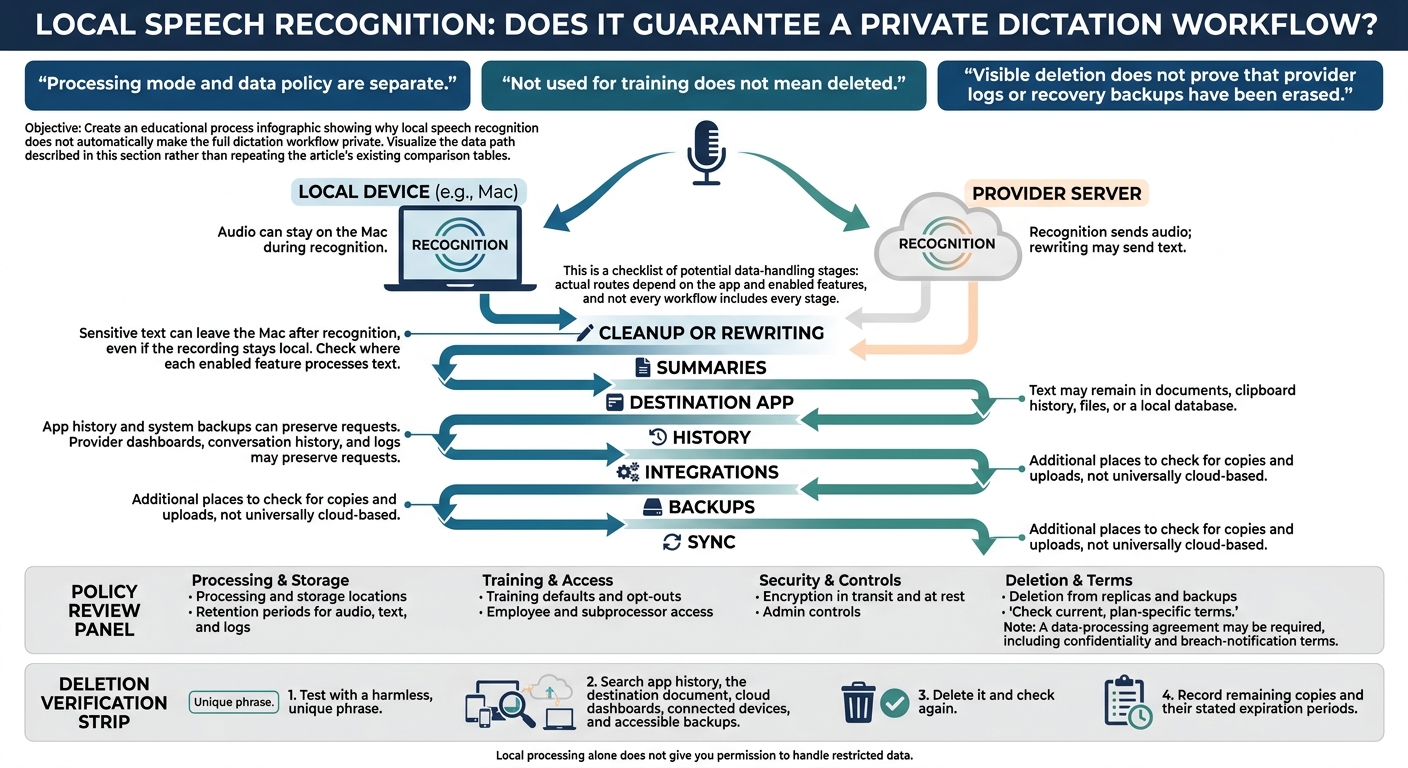
Processing mode and data policy are separate. Cloud dictation may delete audio after processing. Local dictation may still upload text through rewriting, history, or sync.
| Privacy dimension | Local recognition | Cloud recognition or rewriting |
|---|---|---|
| Audio transmission | Audio can stay on the Mac during recognition | Recognition sends audio; rewriting may send text |
| Raw-audio retention | Controlled by the app, operating system, backups, or user | Audio may be deleted after processing or kept for quality checks, abuse monitoring, or history |
| Transcript storage | Text may remain in documents, clipboard history, files, or a local database | Text may enter account history, application state, logs, and synced storage |
| History | App history and system backups can preserve requests | Provider dashboards, conversation history, and logs may preserve requests |
| Model-training use | No remote training use if data never leaves the Mac | Check the current policy and contract; some business APIs prohibit training by default |
| Deletion controls | Delete local files, app data, history, and backups | Use provider deletion controls and check retention exceptions |
Decide Which Business Information You Can Dictate
Treat product strategy, customer records, financial projections, legal discussions, and hiring plans as confidential by default. Favor verified local processing, and protect the Mac with full-disk encryption, strong authentication, automatic screen locking, and controlled backups.
Follow company, client, and applicable legal requirements. Local processing alone does not give you permission to handle restricted data.
Review Retention Policies and Access Controls
Check current, plan-specific terms before approving a tool. Review processing and storage locations; retention periods for audio, text, and logs; training defaults and opt-outs; employee and subprocessor access; encryption in transit and at rest; admin controls; and deletion from replicas and backups.
Require a data-processing agreement where needed, with confidentiality and breach-notification terms. Not used for training does not mean deleted.
Trace Data Through Cleanup, History, and Sync
Follow the full data path: recognition → cleanup or rewriting → summaries → destination app → history → integrations → backups → sync. Sensitive text can leave the Mac after recognition, even if the recording stays local. For OneKey, review recognition, AI outputs, history, and sync separately.
Test deletion with a harmless phrase that won't appear elsewhere. Search for it in app history, the destination document, cloud dashboards, connected devices, and accessible backups. Then delete it and check again.
Record any remaining copies and their stated expiration periods. Visible deletion does not prove that provider logs or recovery backups have been erased. Complete this check before using the workflow for sensitive notes.
Conclusion: Choose Local, Cloud, or Hybrid Dictation
Choose the simplest mode that fits your note, internet connection, and cleanup needs - not the label.
| Approach | Best fit | Why | Main compromise |
|---|---|---|---|
| Local offline | Confidential notes and unreliable connectivity | Keeps audio on the Mac and works offline. | Uses local resources; rewriting may be limited. |
| Cloud | Non-sensitive content and server-side AI | Supports rewriting and server-side models. | Needs internet access and a review of data policies. |
| Controlled hybrid | Private capture with selective AI assistance | Keeps capture local and sends only approved text. | Requires redaction and upload controls. |
Keep Confidential Dictation Separate From Cloud Rewriting
In a hybrid setup, keep capture and cleanup separate. Dictate confidential notes locally. Before sending text to the cloud for rewriting, redact sensitive details. Check that history, sync, and integrations won’t upload the original.
This matters most when one app combines local dictation with optional AI cleanup.
Test OneKey's Offline and AI Features Separately
OneKey illustrates this mixed workflow: local Mac recognition with optional cloud transcription and AI enhancement.
Run a final speed test using your exact OneKey setup on your Mac. Compare the median time from your last word to usable, cleaned text.
Then check how each feature handles data. Verify recognition, cleanup, history, sync, sign-in, backups, and integrations separately before using the setup for confidential work.
FAQs
How can I verify that dictation never uploads my audio?
Use a local, offline setup and check that cloud transcription and all other cloud features are off. OneKey for Mac transcribes on-device by default and works offline, so on-device transcription doesn’t send voice recordings to servers. Audio is sent only if you explicitly enable optional cloud features. Make sure those settings stay off.
How much Mac memory do I need for local dictation?
Memory needs depend on the AI model. Larger, more accurate models generally need at least 16 GB of RAM to run well.
Apple Silicon (M-series) chips are ideal for offline dictation. Compared with older Intel-based hardware, they run models locally at higher speeds and put less strain on your system.
What should I redact before using cloud rewriting?
Before using cloud tools to rewrite or process content, remove or anonymize sensitive information you don’t have permission to share with third-party providers. This includes full names, private email addresses, home addresses, phone numbers, proprietary company data, trade secrets, sensitive financial figures, and confidential client records.
Cloud tools send your audio or text to external servers. That means providers handle whatever you include in your dictation or notes.