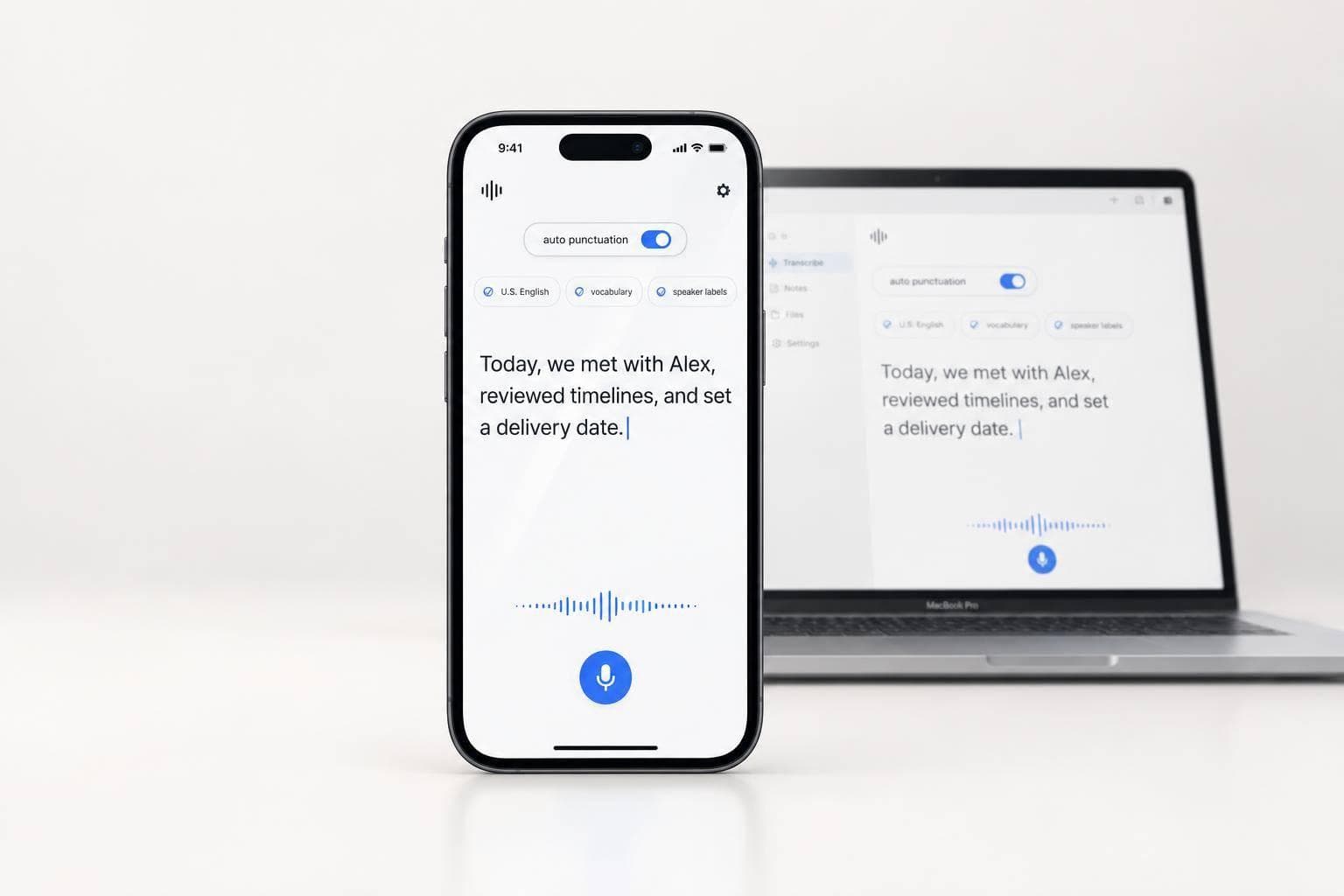
Enable Auto Punctuation in AI Transcription Apps
I start by checking auto punctuation support, turning it on, and selecting English (United States). Then I check U.S. formats and test both live dictation and recorded transcription - settings and voice commands may work differently in each mode.
My setup checklist is simple:
- Tune the text: Add names and technical terms, enable speaker labels for group recordings, and choose formatting and output style.
- Test the details: Use a short sample with two speakers, a question, and numbers such as $25.50, 10%, and 3:30 p.m.
- Fix repeated errors: Compare the text with the audio, change one setting at a time, and save settings that pass.
- Review before sending: Check punctuation, names, numbers, speaker assignments, and action items - including generated emails and summaries.
<u>Auto punctuation gives me a draft, not a finished document.</u> I read for meaning, retest after setup changes, and follow consent and audio-retention rules. For high-stakes text, I check the source and get approval from a qualified reviewer.
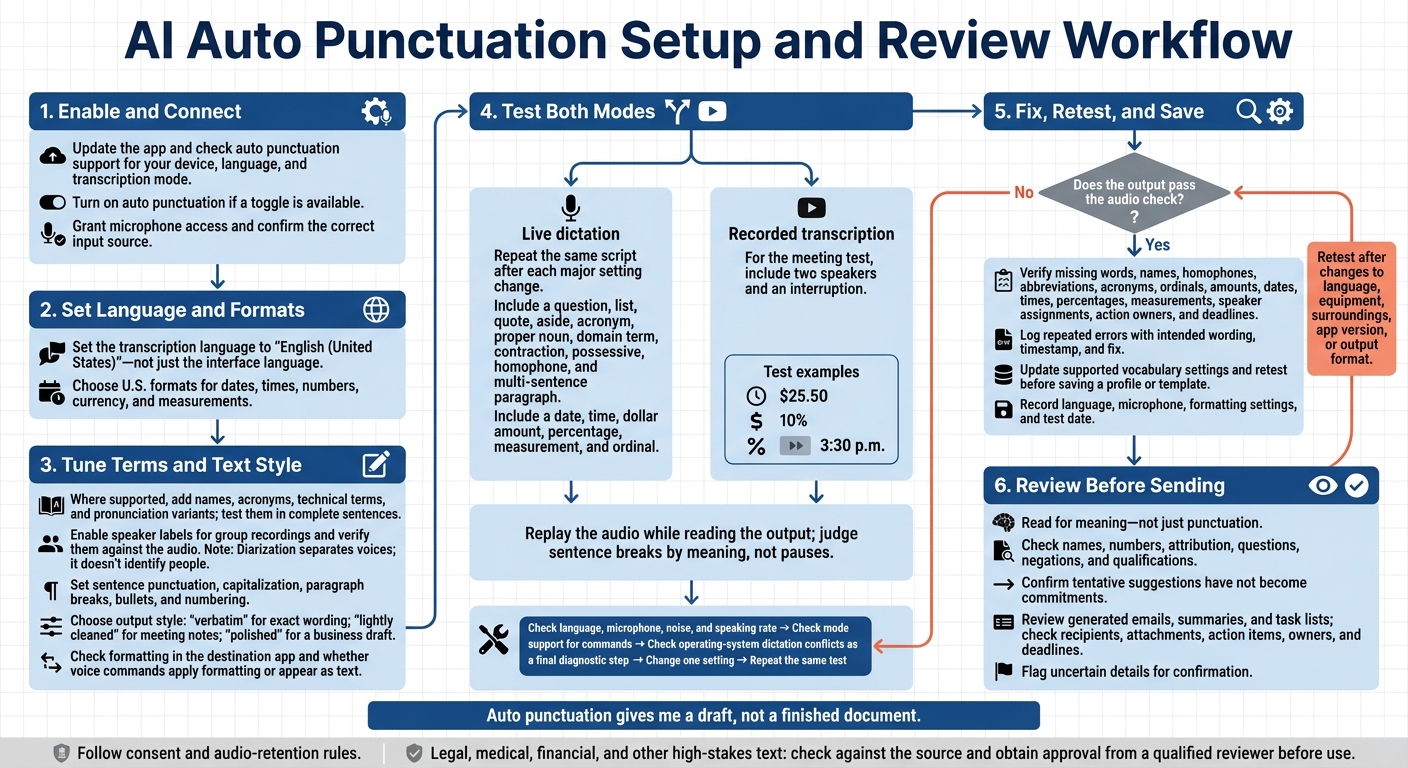
AI Auto Punctuation Setup and Review Workflow
Setup: Turn On Punctuation and U.S. English
Check Support and Turn On Auto Punctuation
Update the app, then check whether auto punctuation works with your device, language, and transcription mode. If the app has an auto punctuation toggle, turn it on.
Grant microphone access and confirm that the app is using the correct input source.
Before adjusting punctuation settings, set the language and regional formats.
Set U.S. English and Regional Formats
Set the transcription language to English (United States). Check the transcription setting itself - not just the app’s interface language.
Choose U.S. formats for dates, times, numbers, currency, and measurements.
With those defaults in place, move on to vocabulary, speaker labels, and formatting defaults.
sbb-itb-b6fe06e
Tuning: Set Terms, Speaker Labels, and Text Style
Once language and regional formats are set, fine-tune vocabulary, speaker labels, and text style.
Add Domain Terms and Verify Speaker Labels
Custom vocabulary: Where supported, add recurring names, acronyms, technical terms, and pronunciation variants to improve word accuracy. Keep the list focused and up to date. Test terms in complete sentences - not just on their own - and check capitalization, plurals, and possessives.
Speaker labels: Turn on diarization for group recordings, then check names or roles against the audio. Diarization separates voices; it doesn’t identify people. Review interruptions and overlapping speech. Confirm that vocabulary, speaker labels, and timestamps work together in your selected mode.
Choose Punctuation and Formatting Defaults
Punctuation and layout: Set sentence punctuation, capitalization, paragraph breaks, bullets, and numbering. Check email addresses, URLs, percentages, dates, and dollar amounts. Review the text in the destination app, too: its formatting rules can change what gets inserted.
Output style: Choose verbatim for exact wording, lightly cleaned for meeting notes, or polished for a business draft. Test whether voice commands apply formatting or appear as text.
Check Final Outputs
Output review: If you use OneKey, review the generated email, summary, or task list before sending. Check sentence breaks, headings, bullets, names, dates, and meaning.
Review: Test Accuracy and Fix Repeated Errors
Test Dictation and Meeting Transcription
Repeat the same script after each major setting change so you can compare results.
Run a short test in both modes. Include a question, list, quote, aside, acronym, proper noun, domain term, contraction, possessive, homophone, and multi-sentence paragraph. Add a date, time, dollar amount, percentage, measurement, and ordinal. For the meeting test, include two speakers and an interruption.
Replay the audio as you read the output. Judge sentence breaks by meaning, not pauses. Check that edits preserve questions, negations, and qualifications. In meetings, confirm who made each commitment. Correct words assigned to the wrong speaker still count as an error.
Fix Sentence Breaks and Formatting
If the test fails, find the cause before editing the text.
Check the language, microphone, noise, and speaking rate first. Then retest with clear speech. If punctuation commands appear as text or paragraph breaks don't work, check whether that mode supports the commands. As a final diagnostic step, check for conflicts with operating-system dictation. Change one setting at a time, repeating the same test after each change.
Verify Details and Save Tested Settings
Once punctuation works consistently, make a final accuracy check.
Check details against the audio. Look for missing words and errors in homophones, abbreviations, acronyms, names, and ordinals. Verify every amount, date, time, percentage, and measurement. Confirm action owners and deadlines, and flag uncertain details for confirmation.
Log repeated errors and save settings that pass the test. Record each error, the intended wording, its timestamp, and the fix. Update supported vocabulary settings, then retest before saving a profile or template. Note the language, microphone, formatting settings, and test date.
Retest whenever the language, equipment, surroundings, app version, or output format changes. Keep source audio only as allowed by consent and retention rules.
Conclusion: Reuse Your Setup and Pre-Send Checks
Once you’ve set up and tested your settings, reuse the same pre-send checklist: punctuation on, U.S. English selected, U.S. formats checked, domain terms and speaker labels set, formatting defaults chosen, and audio tested.
Before sending, read for meaning - not just punctuation. Check names, numbers, attribution, and questions. Make sure tentative suggestions haven’t turned into commitments. For emails or task lists, also confirm the recipient, attachments, and action items.
Tested settings cut cleanup, but they don’t replace judgment. Use the checklist to catch errors, not to skip review. Legal, medical, financial, and other high-stakes text must be checked against the source and approved by a qualified reviewer before use.
FAQs
Can I correct punctuation without changing my wording?
Yes. AI-powered transcription and dictation tools can apply punctuation and formatting based on your preferences. You can also edit punctuation in the draft or review interface without changing your wording or intent.
While dictating, use spoken cues like “period” or “new paragraph” to keep the flow you want and cut down on manual edits later.
How does auto punctuation handle mixed-language speech?
Auto punctuation uses multilingual AI models to add punctuation and formatting as you switch between languages. The models use context to handle these transitions, so you spend less time on manual cleanup. Set the correct languages in your app to help keep the results accurate.
Why do my punctuation settings change between apps?
Punctuation settings vary across apps because dictation services use different speech-to-text models, processing methods, and default formatting rules. Some process audio on your device, while others send it to cloud servers.
How an app handles context matters, too. Some simply turn speech into text. Others use AI to adjust punctuation, remove filler words, or organize drafts. Custom vocabulary and language settings, such as English (United States), can also affect punctuation.