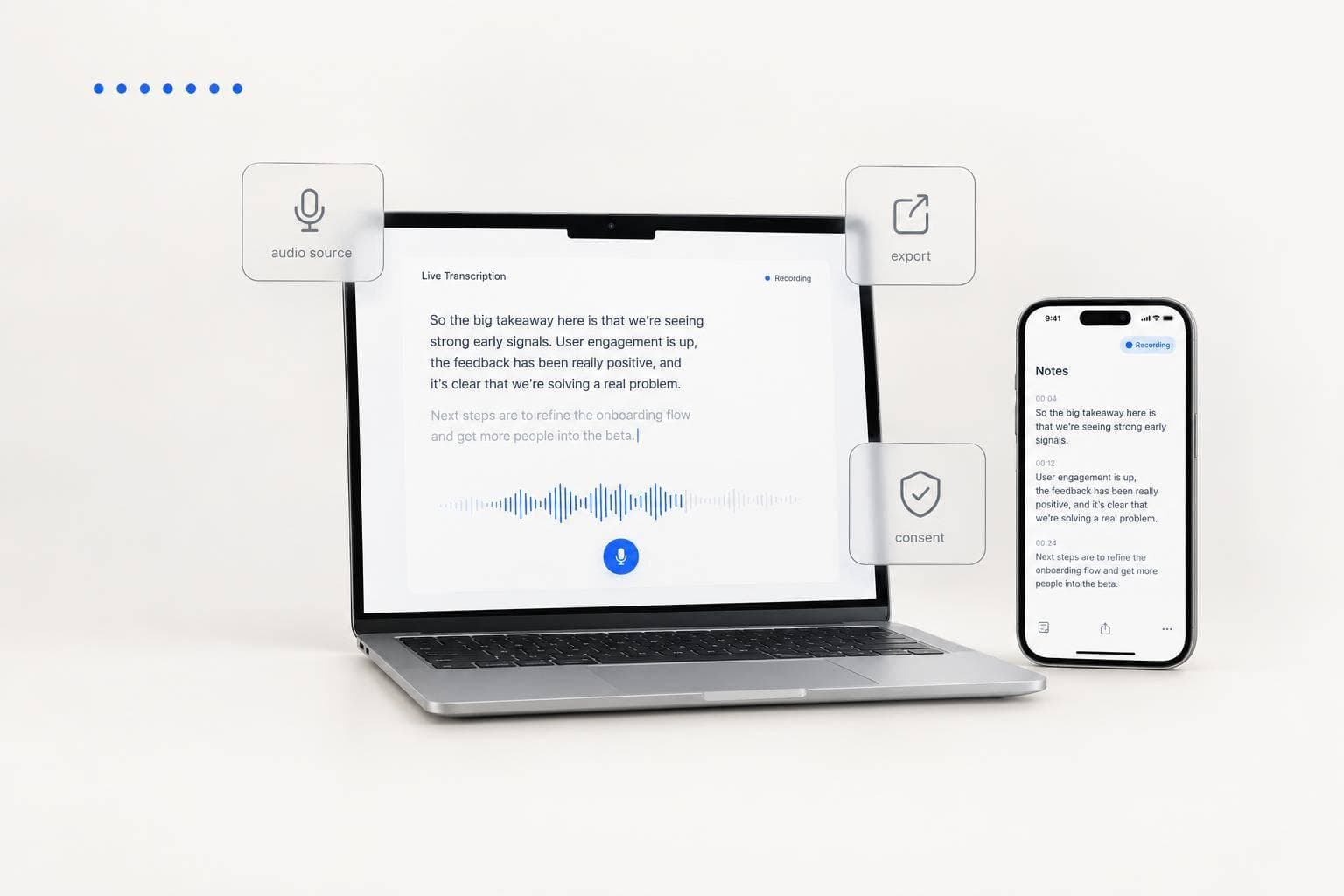
7 Browser Live Transcription Tools for Founders
I’d choose a live transcription tool by its audio source - and test the transcript download before the first call. Browser captions don’t always produce a saved record, and browser access doesn’t mean a tool can hear any open tab.
My shortlist covers 7 tools for meetings, broadcasts, and scheduled events. Here’s how I’d sort them.
Quick Comparison
| Tool | Best fit | What I’d check first |
|---|---|---|
| Google Meet | Customer interviews | Workspace transcription access and Google Drive storage |
| Microsoft Teams for Web | Team and client meetings | Transcription permissions and DOCX or VTT downloads |
| Zoom Web App | External calls | Host caption settings and browser download options |
| Cisco Webex Web App | Partner calls and webinars | Browser controls, language options, and recording access |
| YouTube Live | Community broadcasts | Eligibility for English automatic live captions and stream setup |
| StreamText | Shared event captions | Caption-feed provider, viewer link, and transcript delivery |
| 3Play Media | Managed webinar captions | Booking lead time, language support, pricing, and post-event files |
I’d keep personal voice notes separate: OneKey serves that workflow on mobile and Mac, rather than transcribing live browser audio.
Before choosing, I’d test the audio input, spoken language, speaker labels, and export file. Then I’d confirm <u>consent, storage, retention, and who can download or share the text</u> - and review names, numbers, and quotes before reuse.
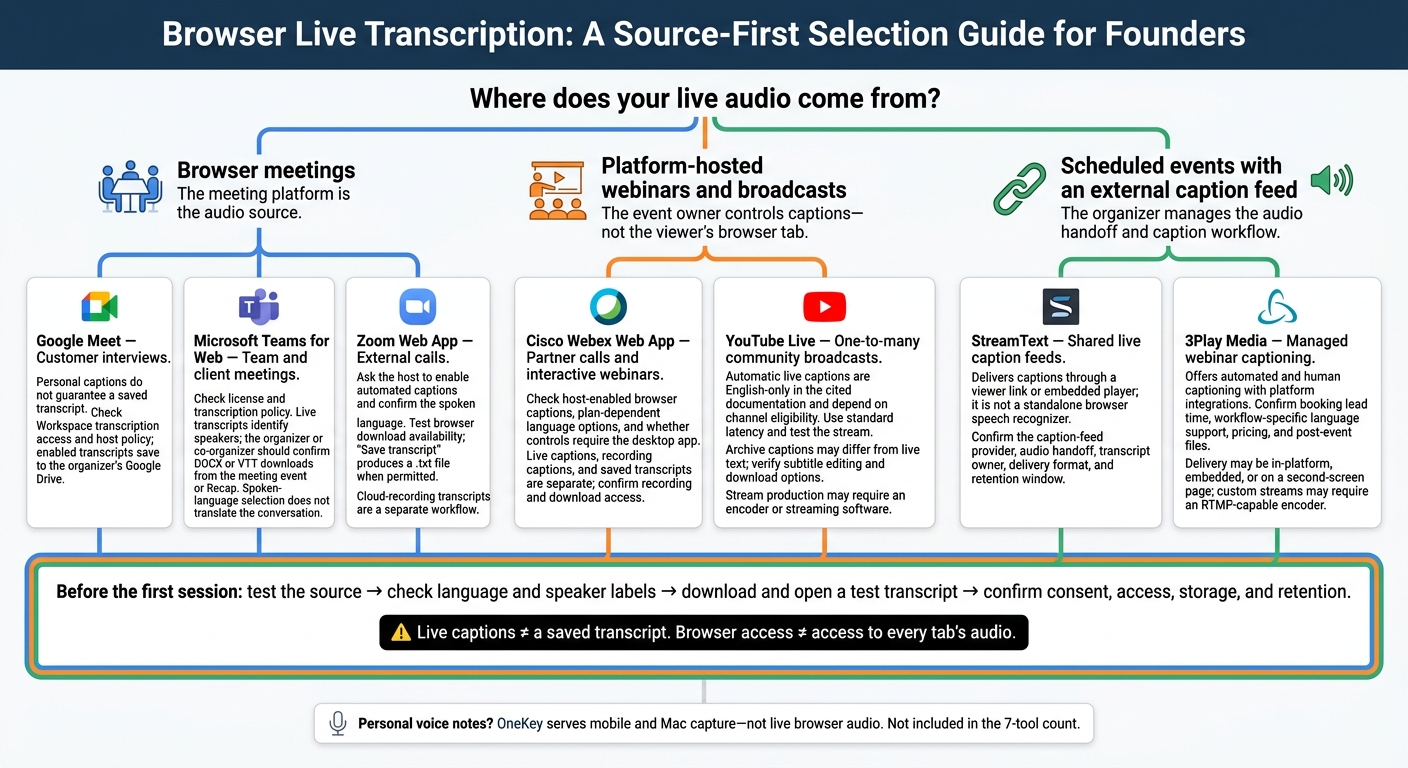
7 Browser Live Transcription Tools: Choose by Audio Source
Meeting Platforms with Live Text
Use these tools when the browser meeting itself is your source. The main differences are who controls transcription and where the transcript is saved. Choose the platform that fits your meeting owner, permissions, and export needs.
1. Google Meet: Customer Interviews
In Google Meet, customer interview participants can turn on captions for themselves. Saving a transcript, though, requires transcription permissions based on the Workspace edition and host policy. When transcription is enabled, the transcript saves to the organizer’s Google Drive. Check access before sharing it with your team.
2. Microsoft Teams for Web: Team and Client Meetings
For team and client meetings in Microsoft Teams for Web, turn on transcription in the meeting controls and select the spoken language, if your license and policy allow it. Live transcripts identify speakers. Choose the closest regional language for better accuracy; this setting does not translate the conversation. Only the organizer or co-organizer should expect to download the transcript from the meeting event or Recap.
3. Zoom Web App: External Calls
For external calls in Zoom, ask the host to enable automated captions and confirm the spoken language. Then check whether the web app offers transcript downloads. Zoom’s Save transcript workflow creates a .txt file when permitted, but caption download controls depend on the account and meeting setup.
If saving isn’t available, ask the organizer for a transcript. Cloud-recording transcripts are separate and may require an eligible account, cloud recording, and action from the organizer.
sbb-itb-b6fe06e
Webinar and Broadcast Captioning
For a hosted webinar or public stream, switch from meeting captions to platform-level captioning. The event owner controls the captions - not the viewer’s browser tab.
4. Cisco Webex Web App: Partner Calls and Webinars
Cisco Webex supports browser captions for interactive webinars when the host or organization turns them on. Language and translation options - including translation across more than 120 languages - depend on the plan.
Run a rehearsal using the host’s setup. Check whether caption, translation, or recording controls need the desktop app. Live captions, recording captions, and saved transcripts are separate, so confirm recording and download access before the event.
Webex works well for controlled, interactive events. YouTube Live fits one-to-many broadcasts.
5. YouTube Live: Community Broadcasts
On YouTube Live, captions serve the broadcast rather than an interactive meeting. The channel owner enables closed captions in YouTube Studio, selects automatic captions, and sets the stream language to English. In the cited documentation, automatic live captions are English-only and depend on channel eligibility. Use standard latency and run an unlisted test. Viewers can watch in a browser, but producing the stream may still require an encoder or streaming software.
YouTube may create a separate caption track for the archive that differs from the live text. Check the editing and download options, then save the subtitle file separately. For multilingual events, or those where accessibility is critical, arrange an external caption feed.
If you need shared caption feeds or managed support, use a dedicated captioning service.
Captioning Services for Scheduled Events
These services suit planned events that need a shared caption feed, rather than captions built into the platform. They deliver text to viewers while the organizer manages the audio path and caption workflow. Choose them when the event owner controls the feed; for live calls, use browser-native meeting captions.
6. StreamText: Shared Live Caption Feeds
StreamText delivers captions - it isn’t a standalone browser speech recognizer. Attendees can open a browser link, or organizers can embed the player on an event page.
For a founder panel, confirm the audio handoff, viewer URL, speaker names and terms, backup contact, transcript owner, file format, and caption retention window.
StreamText reports more than 100 translation languages. Check source-language coverage, transcript delivery, and replay-sync formats before the event.
7. 3Play Media: Managed Webinar Captioning
For booked, managed events, 3Play Media provides service support and platform integrations. It offers automated and human captioning and works with Zoom, YouTube, and Brightcove. Attendees can read captions within the platform, through an embed, or on a second-screen page. Custom streams may require an RTMP-capable encoder.
For accessibility-focused webinars, check what the service includes, not just whether it carries a live captioning label. 3Play Media advertises support for more than 50 captioning languages, but availability depends on the workflow, account configuration, and event type. Confirm booking lead time and request a quote that covers duration, minimums, language charges, and post-event corrections.
For fast, personal capture outside scheduled events, move to voice notes.
Personal Voice Notes Beyond This List
For founders, personal voice notes bridge the gap between live transcription and finished work - after meetings, between calls, or on the move. They turn your thoughts into action, rather than record the meeting itself.
OneKey: Spoken Ideas on Mobile and Mac
OneKey serves this separate workflow. On mobile, it turns speech into summaries, tasks, emails, and posts.
On Mac, press a hotkey, speak, and insert text at your cursor. The desktop app requires macOS 14 or later on an Apple Silicon Mac.
OneKey supports more than 30 languages and has a free mobile tier with paid upgrades. It’s outside the seven-tool count because it’s a personal capture tool, not a browser live transcription tool.
Before relying on either workflow, check permissions, export options, and consent.
Check Permissions, Exports, and Consent
Before your first live interview, meeting, webinar, or voice-note session, test the tool’s workflow. Make sure it records the source you need: mic, tab, meeting audio, upload, or system audio. Check microphone permissions in both your browser’s site settings and your operating system, and confirm that you’ve selected the right mic. Make sure every intended speaker comes through. Microphone access alone won’t enable tab or system audio recording. Reload and test again.
Test names, acronyms, amounts, dates, numbers, and speaker changes with interruptions, background noise, and overlapping speech. Compare the transcript with a recording, if available. Pay close attention to negations, who said what, and action items - treat captions as a draft, not a finished record.
Download a test transcript and open it outside the service. Check its timestamps, speaker labels, and file format. Confirm how long files stay available and whether you can still download them after a trial or subscription ends.
Once exports work, check who can view and share the transcript. Before recording, explain whether you’ll save audio, text, or both; why you’re saving them; who can access them; and how long you’ll keep them. Give participants a chance to object or leave, and stop recording if they object. For calls across state lines, check the consent rules for each participant’s location.
Check where files are stored, whether audio or transcripts are used to train models, whether data is encrypted in transit and at rest, and how permissions control access. Use a low-risk sample to test link revocation and deletion. Confirm what remains in search results, backups, and downloaded copies.
Conclusion: Choose by Source and Workflow
Start with the source: a meeting, webinar, broadcast, or caption feed. Use this table to narrow your options.
| Founder need | Shortlist | Deciding factor |
|---|---|---|
| Customer interviews | Google Meet | Choose it when customers can join your browser meeting. |
| Reusable team meeting records | Microsoft Teams for Web | Choose it for downloadable records that identify each speaker. |
| External calls | Zoom Web App | Choose it when the host already uses Zoom. |
| Partner webinars or public broadcasts | Cisco Webex Web App, YouTube Live | Pick Webex for interaction; YouTube for one-to-many streams with platform-owned captions. |
| Scheduled events with accessibility support | StreamText, 3Play Media | Choose these when you need a managed caption feed or an outside captioning team. |
OneKey sits outside this browser roundup. It records spoken ideas on mobile and Mac - not live browser audio.
Before the session starts, check the language, consent, transcript retention, export format, and who can download the text.
FAQs
How can I tell if a tool captures tab audio?
Check the tool’s documentation or feature list to see whether it can record browser tab audio directly, rather than only using your microphone. In the input settings, look for options labeled “System Audio” or “Tab Audio.”
Dictation-only tools usually accept microphone input but don’t directly record audio playing in a browser tab.
When should I choose human captions over automated ones?
Choose human captions when high-stakes, specialized, or complex content calls for near-perfect accuracy - and automated errors aren't acceptable. Automated tools can struggle with background noise, heavy accents, and industry jargon. Human transcribers account for nuance and context in sensitive legal, medical, or highly technical material.
Use automation for speed, scale, and general needs. Reserve human services for the final, critical review.
How can I safely share transcripts with my team?
Choose transcription tools that support teamwork and turn recordings into searchable, formatted text. Before sharing sensitive details, such as hiring plans or fundraising strategy, check how the provider stores and shares your data.
To distribute transcripts automatically, use webhooks to send them to Slack or project management tools. Look for manual confirmation settings so you can review and approve content before it’s shared or sent to an external endpoint.