Meeting Voice Notes to Follow-Up Email Drafts
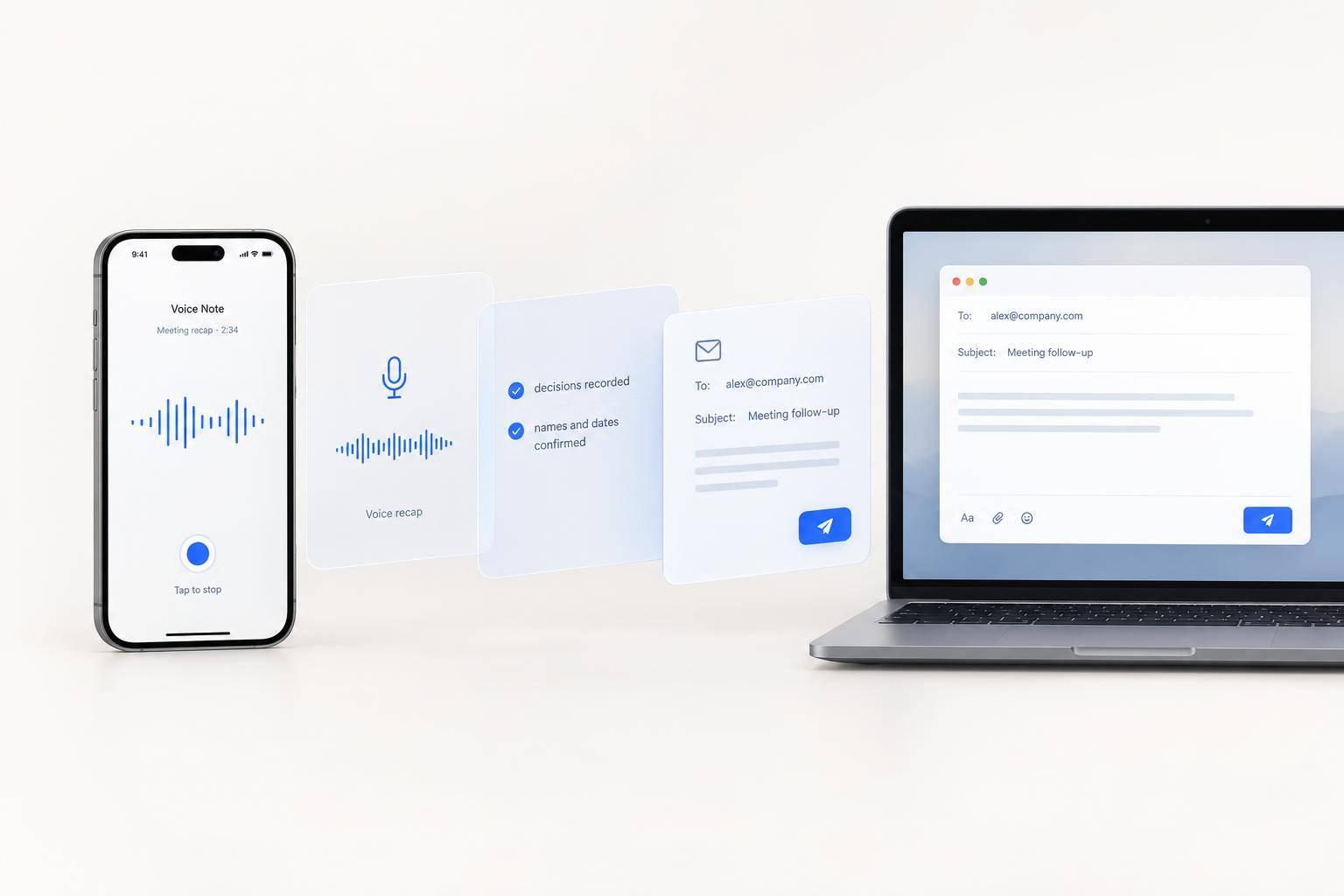
A 2–5 minute voice recap can become a follow-up email draft - but AI output still needs a fact check. Record approved decisions, accepted tasks, owners, deadlines, and open questions. Then use OneKey to organize the notes and draft the email.
Before sending:
- Verify names, commitments, and dates against the meeting record.
- Keep proposals separate from agreements, and mark missing details as unconfirmed.
- Remove sensitive details and check recipients and linked files.
Send manually within 24 hours once the facts are checked, and save the verified action list for future follow-ups.
Meeting Voice Notes to Follow-Up Email: The Verified Workflow
1. Record and Structure Your Meeting Recap
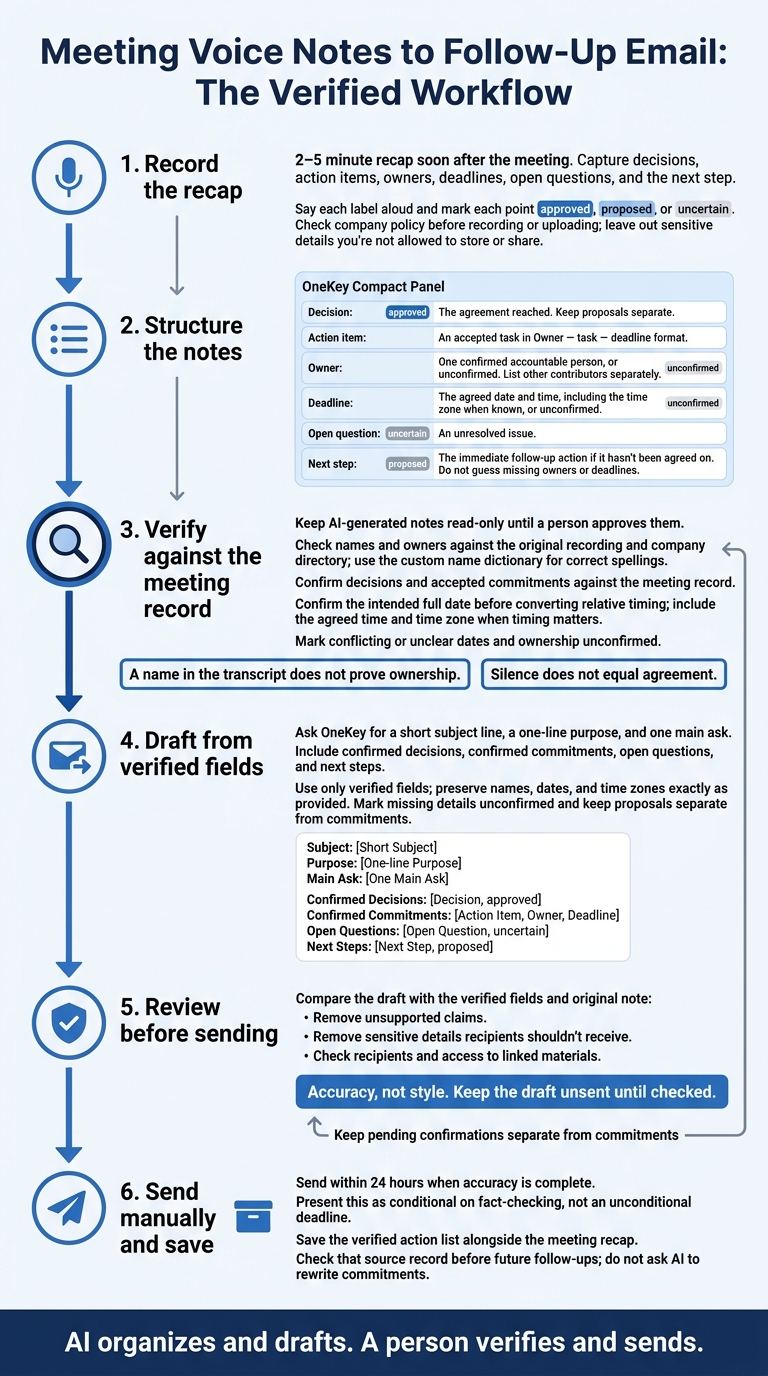
Record a 2–5 minute recap soon after the meeting. Focus on outcomes rather than the order of the conversation. Before recording or uploading, check company policy and leave out sensitive details you’re not allowed to store or share.
Record Decisions, Commitments, and Open Questions
Cover decisions, action items, owners, deadlines, open questions, and the next step. Say each label aloud as you move from decisions to actions to questions. Mark each point approved, proposed, or uncertain so a suggestion doesn’t sound like an agreement.
Turn Your Recap Into a Draft With OneKey
Start by turning your spoken recap into structured fields. Then use those fields to draft the email.
On mobile, use OneKey to turn your spoken recap into a follow-up email draft or task list. Ask for the format you need - not a transcript. On Mac, voice input inserts text at your cursor in any app.
Keep the draft unsent until you’ve checked the facts, names, and deadlines.
Sort the Recap Into Fields
These fields keep agreements separate from unresolved details. Write each task as “Owner - task - deadline.” Assign one accountable owner only when confirmed, and list other contributors separately. Don’t ask AI to fill in missing owners or guess unclear deadlines.
| Field | What to capture |
|---|---|
| Decision | The agreement reached, labeled approved. Keep proposals separate. |
| Action item | An accepted task in “Owner - task - deadline” format. |
| Owner | One confirmed person accountable for completion, or unconfirmed. |
| Deadline | The agreed date and time, including the time zone when known, or unconfirmed. |
| Open question | An unresolved issue, labeled uncertain. |
| Next step | The immediate follow-up action, labeled proposed if it hasn’t been agreed on. |
Use these fields as the source for the next email draft.
sbb-itb-b6fe06e
2. Verify Names, Commitments, and Deadlines
Before drafting, check each field against the original recording. Keep AI-generated notes read-only until a person approves them.
Check Names and Task Ownership
In OneKey, review the Tasks tab and check each owner against both the original recording and the company directory. Use the custom name dictionary to spell participant names and project-specific terms correctly in the draft. A name in the transcript does not prove ownership. Mark unclear ownership as unconfirmed.
Separate Decisions From Proposals
Keep confirmed decisions and accepted commitments separate from proposals and tentative offers. Check every claimed agreement against the meeting record - not memory - to distinguish approval from suggestion. Silence does not equal agreement. If something wasn’t settled, mark it uncertain rather than making the email sound more certain than the meeting was.
Confirm Dates and Time Zones
Convert relative timing to a full date only after confirming the intended date. When timing matters, include the agreed time and time zone. Don’t turn vague timing into a deadline. If records conflict, mark the date unconfirmed until you verify it manually.
3. Draft, Review, and Send the Email
Draft the Email
Once you’ve verified the fields, write the email with a short subject line and a one-line purpose. Add sections for confirmed decisions, confirmed commitments, open questions, and next steps.
Use a Fact-Only Prompt
Give OneKey the verified fields. Tell it to use one main ask, use only those fields, and keep names, dates, and time zones exactly as provided. Mark missing details as unconfirmed, and keep confirmed commitments separate from proposals and open questions.
Review Facts, Privacy, and Recipients Before Sending
Compare the draft with the verified fields and original note. This final check is about accuracy, not style:
- Remove unsupported claims.
- Remove sensitive details that recipients shouldn’t receive.
- Check recipients and confirm they can access linked materials.
Send within 24 hours when accuracy is complete. Keep pending confirmations clearly separate from commitments. After the final check, send the email manually.
Conclusion: Keep the Action List Ready for Follow-Up
Follow the same workflow each time: recap, structure, verify, draft, review.
Save the verified action list alongside the meeting recap. Use it as the source record for future follow-ups, and check it before each one instead of asking AI to rewrite the commitments. This keeps every follow-up grounded in confirmed facts, not memory.
FAQs
How do I verify commitments without a meeting recording?
Right after the meeting, dictate a summary of decisions, commitments you made, and next steps while the details are still clear.
Treat extracted action items as tentative. Separate firm promises from loose ideas, and flag unclear deadlines - or those phrased as “next week” - for manual confirmation. Before automated systems turn these items into final tasks, check them against your own records. No action should rely on unverified AI inferences.
What if attendees disagree with my recap?
Keep the recap marked as a draft until every detail is confirmed. Block downstream workflows and financial actions in the meantime. AI can mistake a loose idea for a firm commitment.
Label unclear or disputed topics as open items or pending discussion, and assign someone to gather the information needed to resolve them. Once they’re resolved, update the record and get approval again for the final, accurate version before sharing it.
Should I send a follow-up with unconfirmed deadlines?
No. If a deadline, recipient, or requested action is missing or unclear, ask for clarification instead of guessing or letting AI fill in the gaps. If no date was agreed on, leave it unresolved in the draft.
Treat AI drafts as placeholders. Before approving the final email for sending, manually check every detail against the source transcript or other evidence from the meeting.